

Accessing Segments
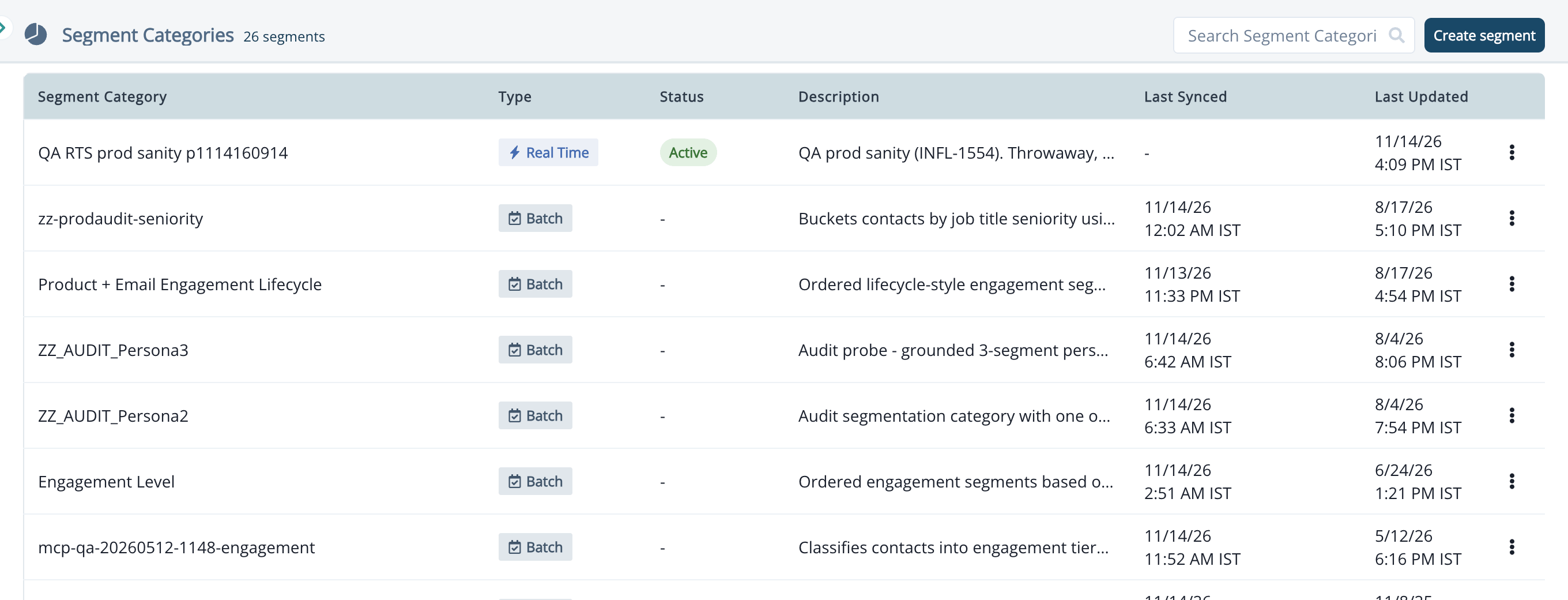
To access segments in Inflection, navigate to Database > Segments from the main menu. The Segment Categories page lists all your segments with these columns:- Type: Real Time or Batch.
- Status: Active or Inactive for real-time segments. Batch segments show a dash.
- Description, Last Synced and Last Updated.
Real-Time vs. Batch Segments
You choose the type when you create the segment, and you can’t change it afterwards. To switch types, create a new segment. Segments created before real-time segments were introduced are Batch segments.
Create a Segment
- Navigate to Database > Segments and click Create segment.
-
In the Create a new segment drawer, select the segment type:
- Real time segment: segment membership is updated continuously as contacts change. This is selected by default.
- Batch segment: segment membership is refreshed on a schedule.
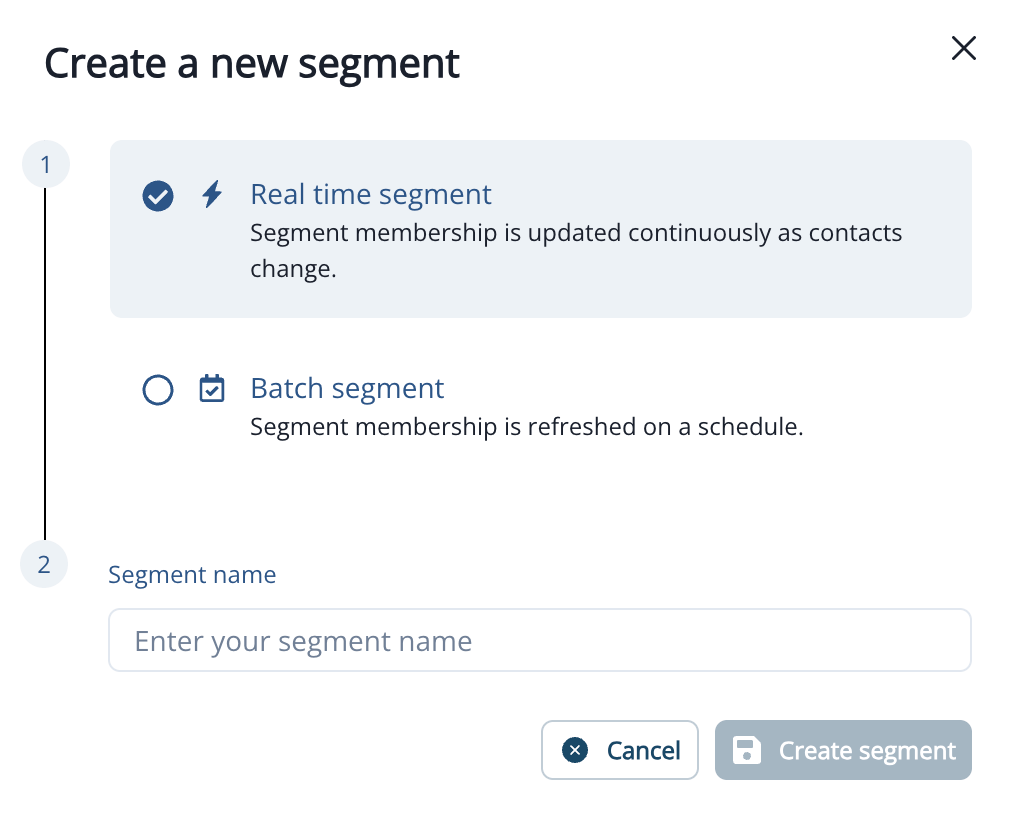
- Enter a Segment name.
- Click Create segment. The segment opens so you can define it. Nothing is saved yet.
- Optionally, add a description.
- Click Add segment to add a sub-segment. Enter its Segment name, optionally a Description, and add its conditions under Dynamic list conditions. Click Save.
- Repeat for each sub-segment. Inflection adds an Everyone else sub-segment at the bottom for contacts that don’t match any of the others.
- Click Create segment to save it.
Activate or Deactivate a Real-Time Segment
A real-time segment only updates while it is Active.Activate a Segment
- Open the segment and click Activate next to its status.
- Click Activate to confirm. Inflection starts a sync that calculates segment values for your existing contacts. From then on, new events are processed in real time.
Sync Status
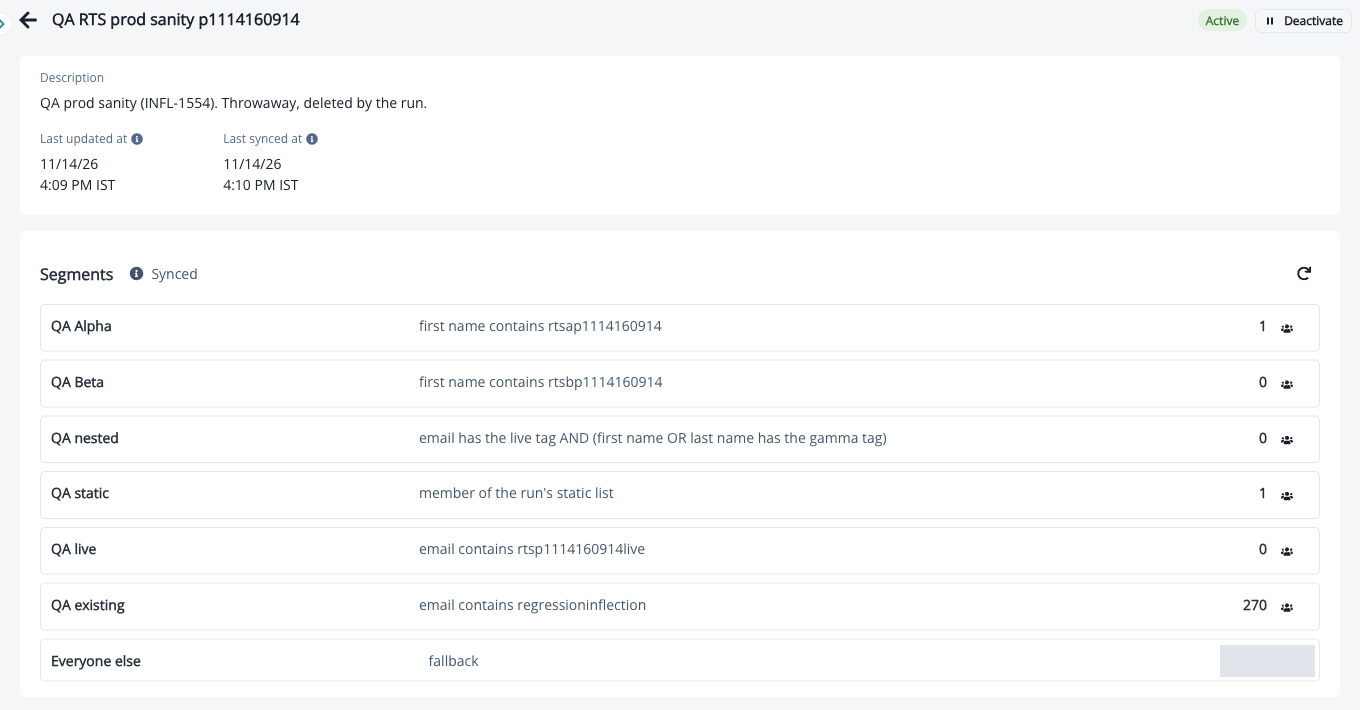
- Synced: counts are up to date.
- Not synced yet: the segment hasn’t been activated since it was created.
- Synced — saved changes not yet live: you saved changes while the segment was inactive. Activate it to apply them.
- Last sync didn’t complete — activate again to retry.
See Who Is in a Segment
Once a real-time segment is synced, each sub-segment shows its count. Click the members icon on a sub-segment to see its contacts in Synced members.Deactivate a Segment
Click Deactivate and confirm. Segment values stop updating for this segment. Contacts keep the values they have now, and you can activate the segment again at any time.An active real-time segment can’t be edited. Deactivate it to make changes, then activate it again.
Edit a Segment
All users and admins can edit segments, regardless of whether they have AI features enabled.- Navigate to Database > Segments and open the segment.
- If it is an active real-time segment, click Deactivate and confirm.
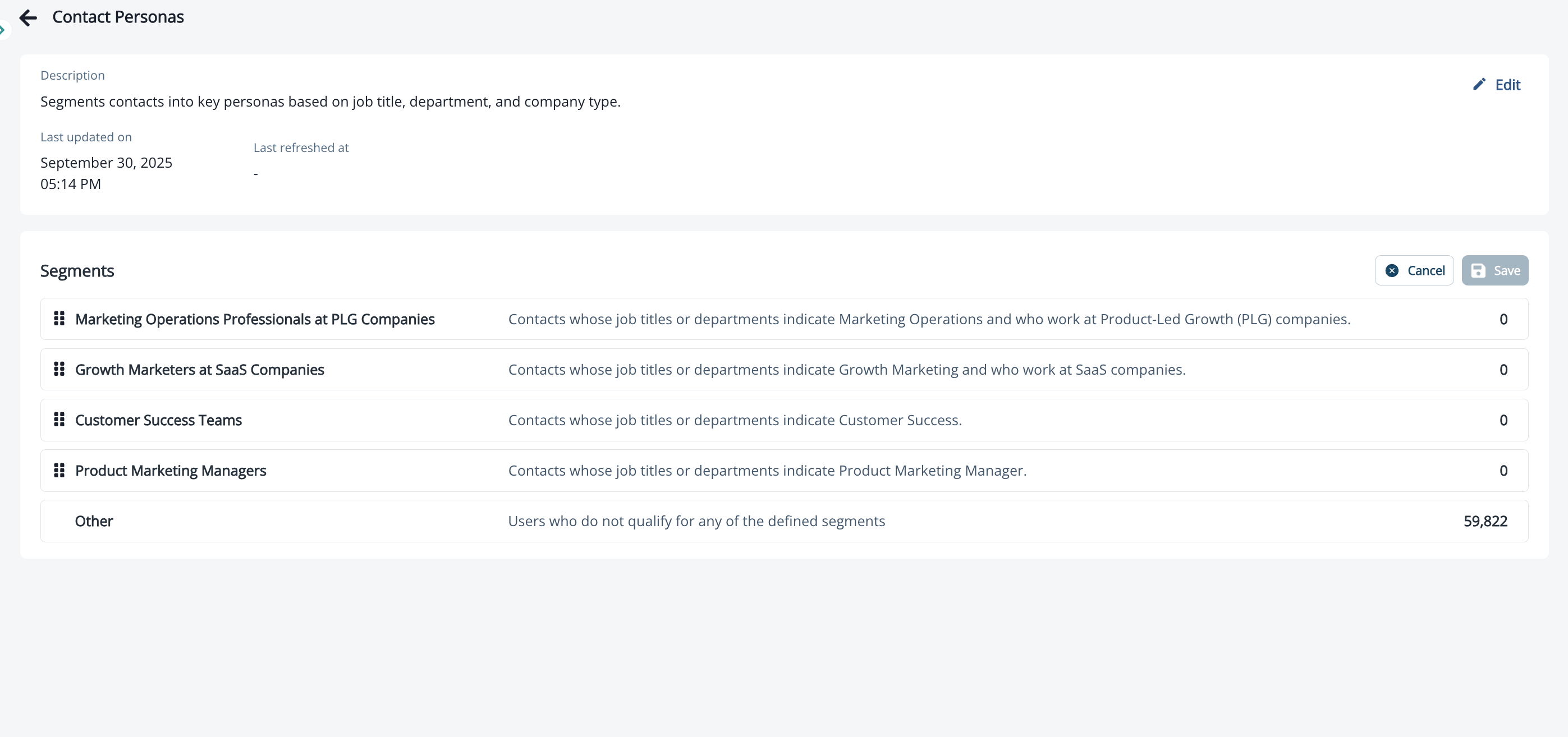
- Click Edit to change the description or the sub-segments. You can:
- Click Add segment to add a sub-segment.
- Click a sub-segment to edit its name, description and conditions.
- Drag sub-segments to reorder them.
- Delete a sub-segment.
- Click Save.
- For a real-time segment, click Activate to apply your changes.
Delete a Segment
- Navigate to Database > Segments.
- On the segment’s row, click Delete.
- Confirm the deletion.
Note: Deleting a segment will remove it from any journeys currently using it.
Segment Exclusivity and Order
A contact can only exist in one sub-segment within a segment at a time. If a contact qualifies for multiple sub-segments, order determines which sub-segment they belong to.How Ordering Works
- Sub-segments are evaluated from top to bottom
- Once a contact matches a sub-segment, they are assigned to it and evaluation stops
- Contacts are not evaluated against sub-segments below their match
- The order of sub-segments is critical - place your most specific or high-priority segments at the top
- Contacts that don’t match any sub-segment go to Everyone else, which is always last and can’t be moved
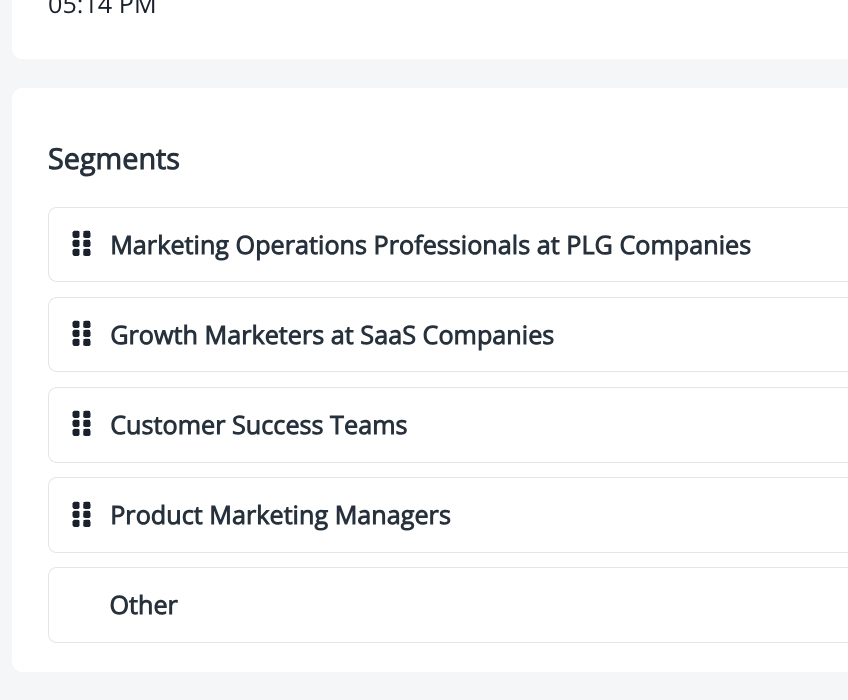
Example
If you have a “Target User Personas” segment with sub-segments ordered as:- VP of Marketing at Enterprise Companies
- Marketing Managers at SaaS Companies
- Other Marketing Professionals
Segment Metadata
When viewing a segment, you’ll see two important timestamps:- Last Updated: Shows when the segment configuration was last modified (e.g., criteria changed, conditions added/removed)
- Last Synced: Shows when the segment data was last synced to reflect current contact information
Batch segments refresh automatically once a day, or within 10 minutes of an update. Active real-time segments update as your contacts change, so they don’t wait for a refresh.
Filters in Real-Time Segments
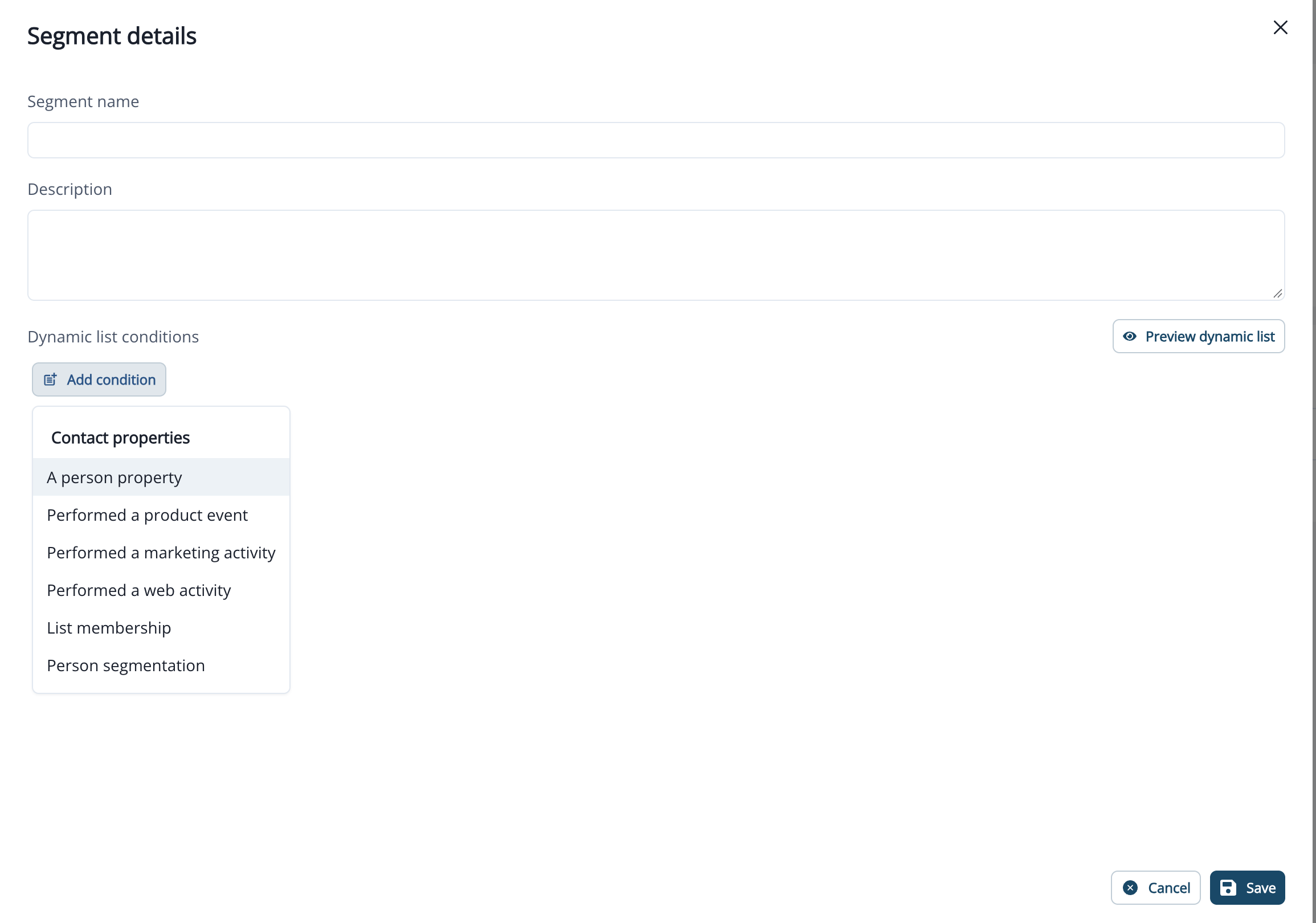
Real-time segments support filters that change when something happens to a contact. When you click Add condition in a real-time segment, you can choose:- A person property
- Performed a product event
- Performed a marketing activity
- Performed a web activity
- List membership (static lists only)
- Person segmentation (real-time segments only)
Use Segments in Dynamic Lists
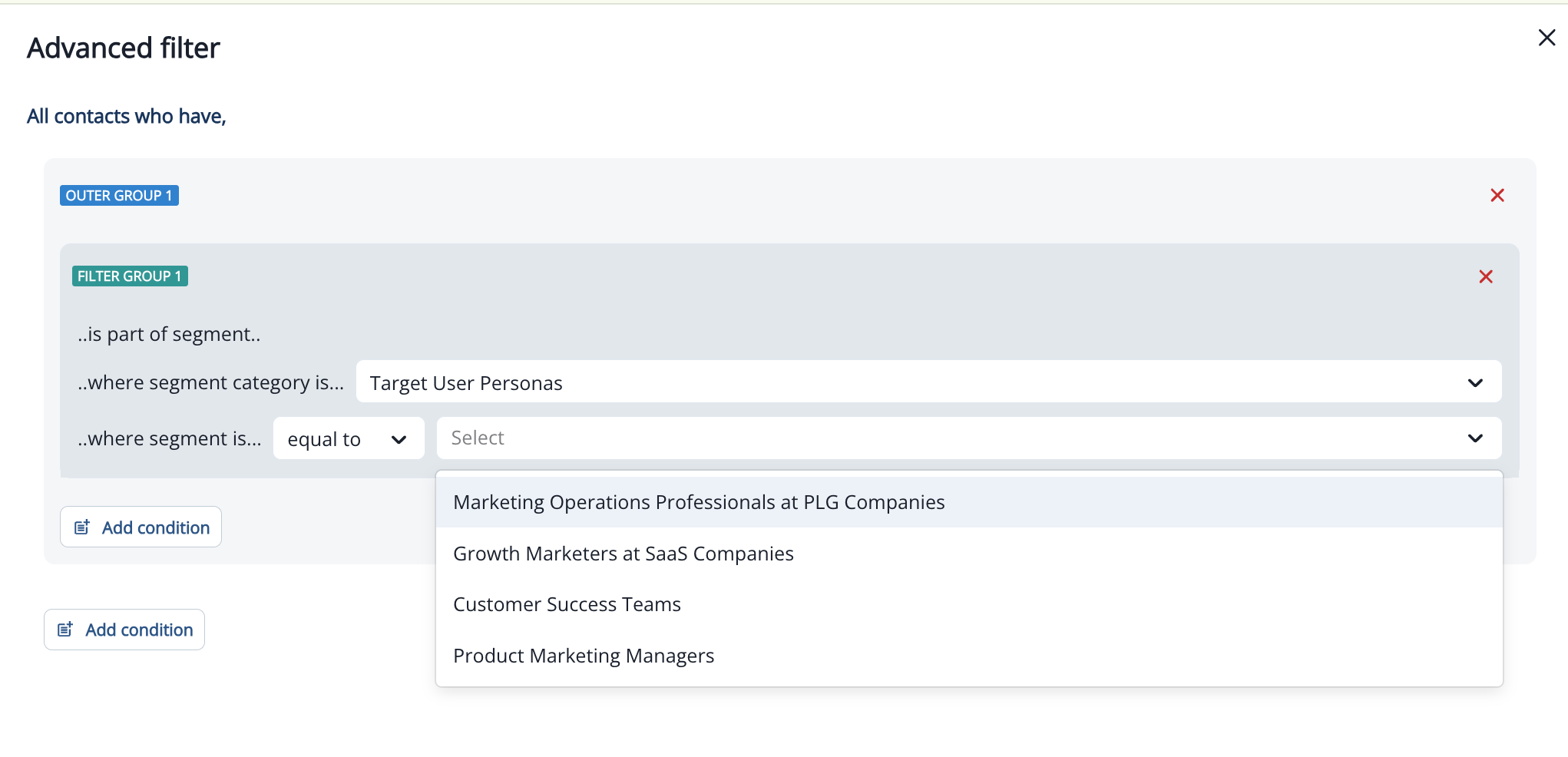
Segments can be used as filters in Dynamic Lists throughout Inflection, including in journey audiences. To use a segment in a Dynamic List:- Open the Dynamic List editor (e.g., when defining a journey audience)
- Click Add condition
- Select Person segmentation
- Choose the segment you want to use from the dropdown (e.g., “Target User Personas”)
- Select the specific sub-segment (e.g., “Marketing Operations Professionals at PLG Companies”)
- The Dynamic List will now filter to include only contacts matching that segment
Frequently Asked Questions
Can a real-time segment use dynamic list or journey audience membership?
Can a real-time segment use dynamic list or journey audience membership?
Not yet. In a real-time segment, List membership offers Static list only. Use a batch segment if you need Dynamic list asset or Journey Audience.
Can a real-time segment filter on "in the past N days"?
Can a real-time segment filter on "in the past N days"?
No. Membership would change as time passes with nothing happening to the contact. Use an absolute date range, or a batch segment.
Can a real-time segment use Salesforce, account or organization filters?
Can a real-time segment use Salesforce, account or organization filters?
Not yet. Salesforce campaign membership, Salesforce opportunity, Account members and Organization members are available in batch segments only.
Can I change a batch segment to real time?
Can I change a batch segment to real time?
No. The type is set when you create the segment. Create a new real-time segment with the same conditions instead.