> ## Documentation Index
> Fetch the complete documentation index at: https://docs.inflection.io/llms.txt
> Use this file to discover all available pages before exploring further.
# Emails
> Steps and considerations when building an email in Inflection.
Inflection's email editor is built with [BeeFree.io](https://beefree.io/). This article will walk through the steps and considerations when building an email in Inflection.
## Create a new email
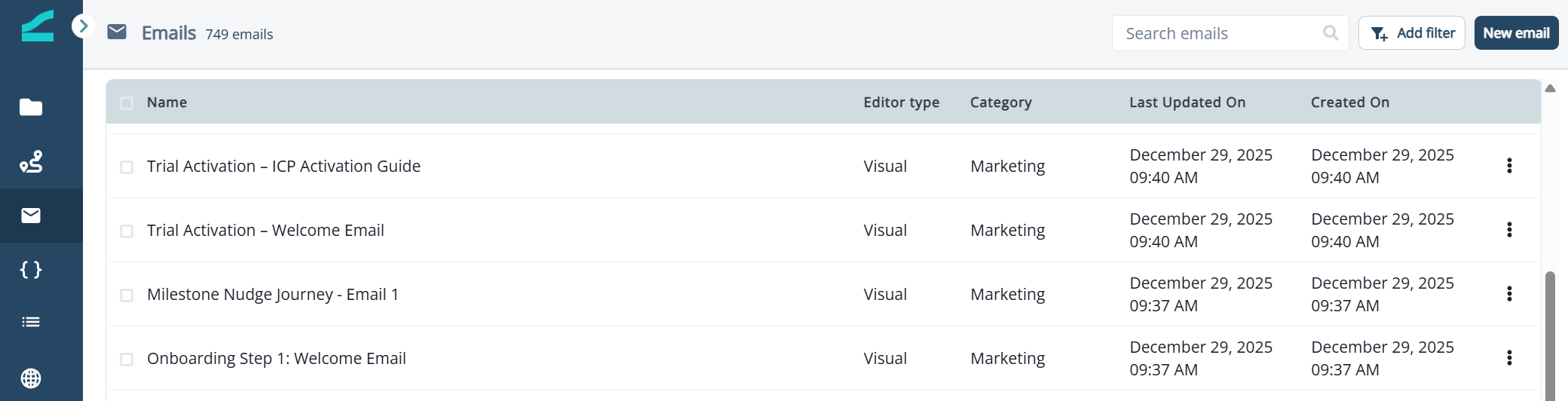
1. Navigate to **Emails** on the left panel.
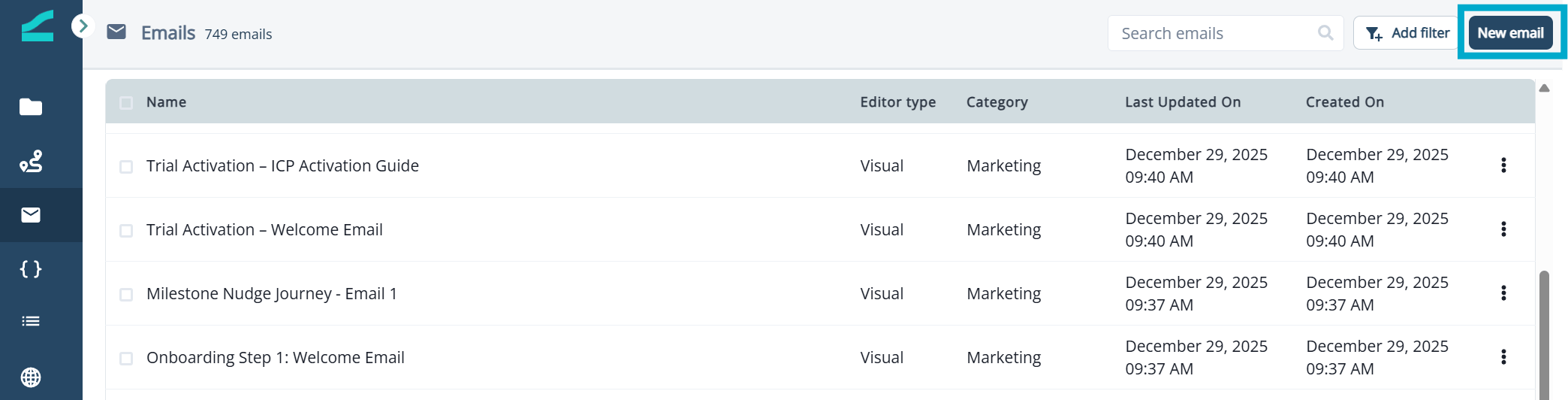
 2. Click **New email.**
 3. Name the email, select the appropriate editor, and categorize the email (Marketing or Transactional).
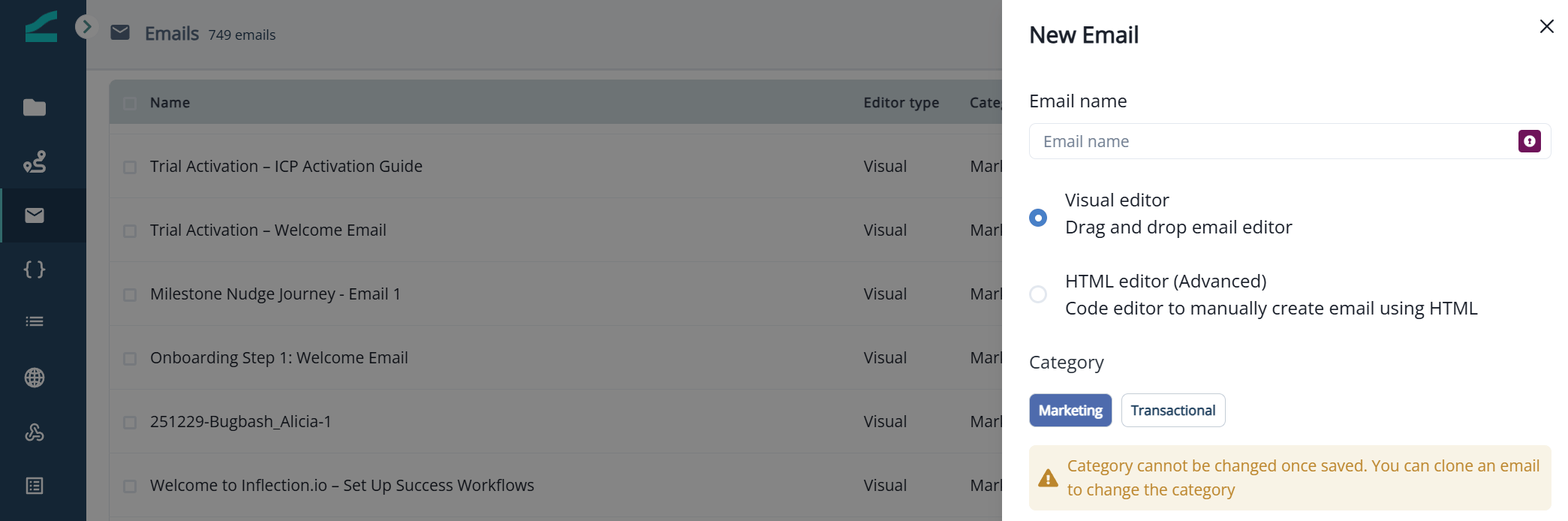 Note that email category cannot be updated once the email is created.
Read more about transactional emails: [Transactional Emails](/journeys/transactional-emails)
4. Choose to create an email from scratch (**Start from scratch**) or select an existing template.
## Asset Settings
### Email Settings
When an email is created, **Email settings** will slide out on the right.
Note that email category cannot be updated once the email is created.
Read more about transactional emails: [Transactional Emails](/journeys/transactional-emails)
4. Choose to create an email from scratch (**Start from scratch**) or select an existing template.
## Asset Settings
### Email Settings
When an email is created, **Email settings** will slide out on the right.
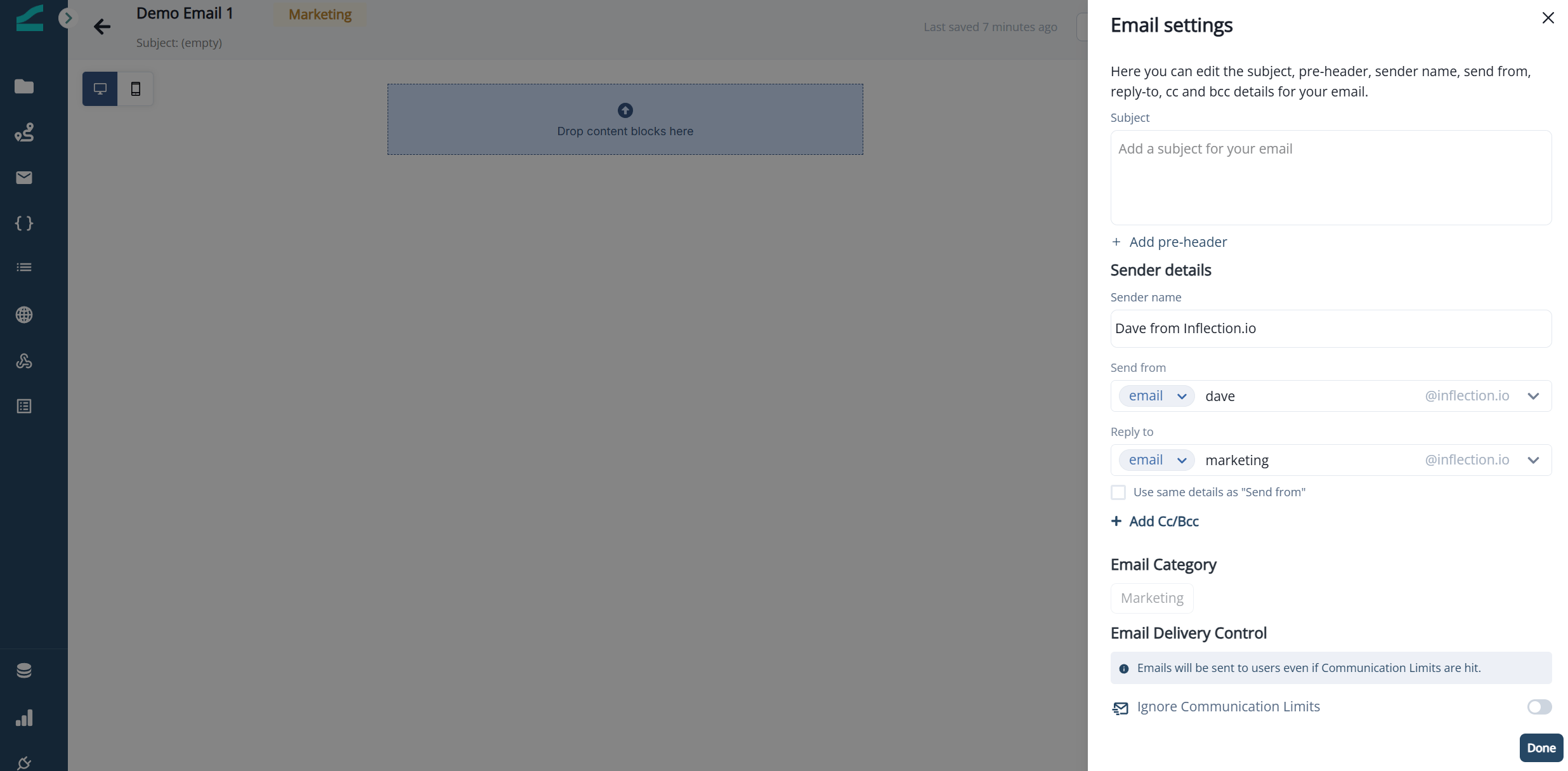 Here you can:
* Add/edit subject line, sender name
* Add/edit pre-header
* Update sender details like name, email, and reply to email
* Add/edit Cc and Bcc contacts
* See the email category (marketing or transactional)
* Select to ignore communications limits
* **Tracking settings** — Control which engagement data is collected for this email. Three switches are available: **Track opens**, **Track link clicks**, and **Identify visitors on your website**. All default to on. See [Email Settings](/settings/email-settings) for details.
Note that sender name, send from and reply to will be pre-populated with information from Email Settings.
Use Cc and Bcc fields responsibly to protect email privacy and comply with regulations. Misuse may lead to privacy violations and negative impacts on your email campaigns, email metrics, and sender reputation.
Click **Done** after entering all the information.
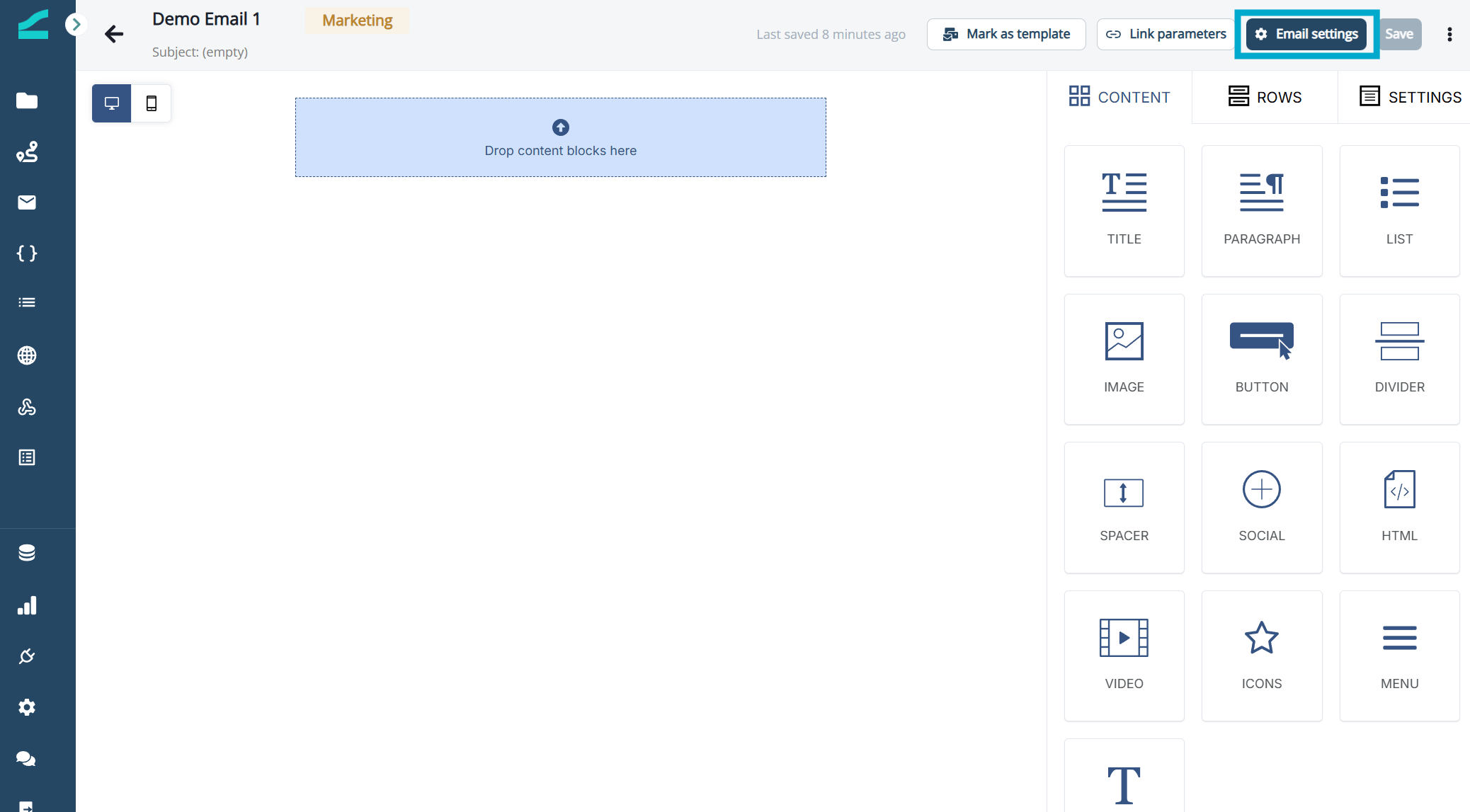
To view or update these settings, select **Email settings** in the top navigation of your email asset.
Here you can:
* Add/edit subject line, sender name
* Add/edit pre-header
* Update sender details like name, email, and reply to email
* Add/edit Cc and Bcc contacts
* See the email category (marketing or transactional)
* Select to ignore communications limits
* **Tracking settings** — Control which engagement data is collected for this email. Three switches are available: **Track opens**, **Track link clicks**, and **Identify visitors on your website**. All default to on. See [Email Settings](/settings/email-settings) for details.
Note that sender name, send from and reply to will be pre-populated with information from Email Settings.
Use Cc and Bcc fields responsibly to protect email privacy and comply with regulations. Misuse may lead to privacy violations and negative impacts on your email campaigns, email metrics, and sender reputation.
Click **Done** after entering all the information.
To view or update these settings, select **Email settings** in the top navigation of your email asset.
 #### Tracking column
The Emails list shows a **Tracking** column that displays the tracking state of each email:
* **Full** — All tracking is on
* **Partial** — Some tracking is on
* **None** — All tracking is off
### UTM Parameters
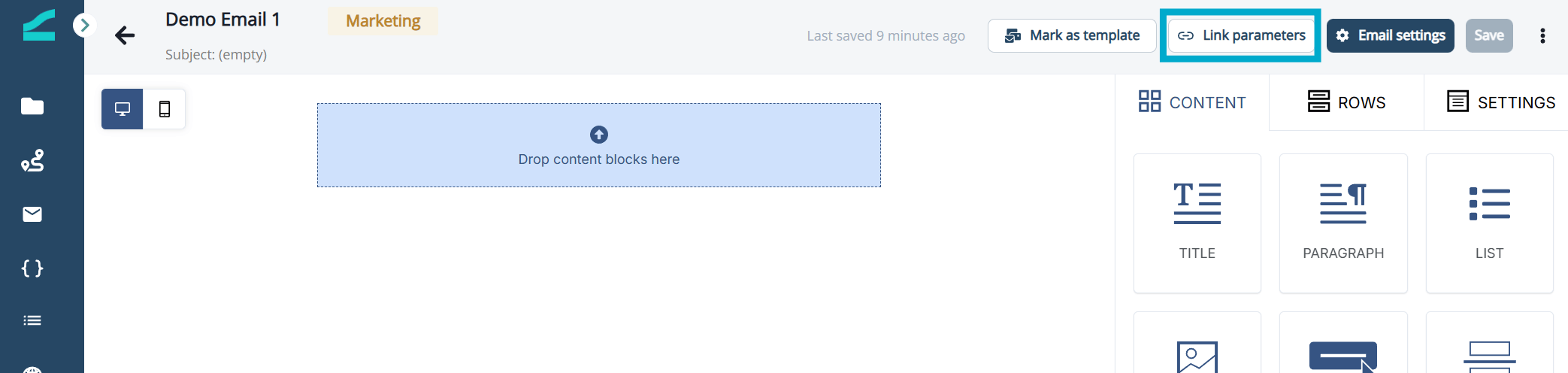
Select **UTM parameters** in the top navigation of your email asset to view and/or update UTM parameters.
#### Tracking column
The Emails list shows a **Tracking** column that displays the tracking state of each email:
* **Full** — All tracking is on
* **Partial** — Some tracking is on
* **None** — All tracking is off
### UTM Parameters
Select **UTM parameters** in the top navigation of your email asset to view and/or update UTM parameters.
 Note that UTM parameters will be pre-populated with default information configured in **Global UTM Parameters** within **Admin Settings**. Talk to your instance administrator to update global settings.
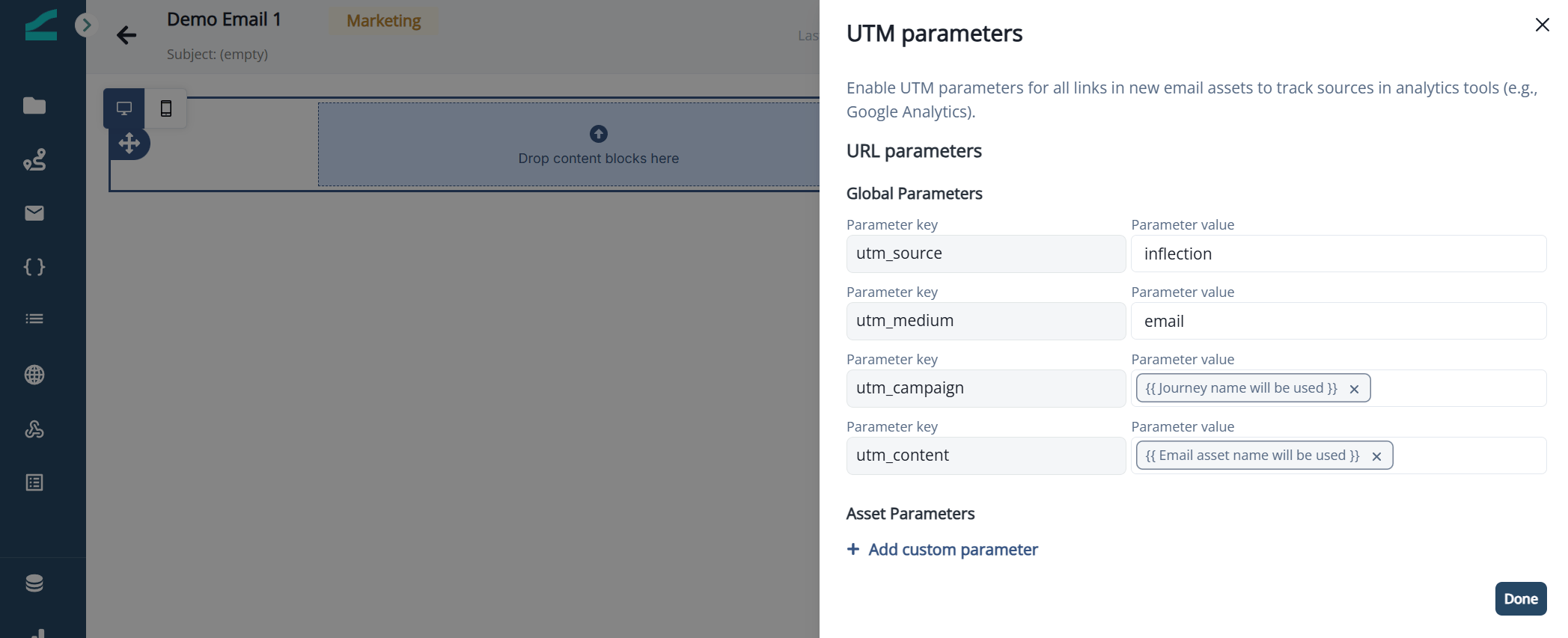 Here you can:
* Overwrite global default parameters
* Add/edit custom parameters
### Mark as template
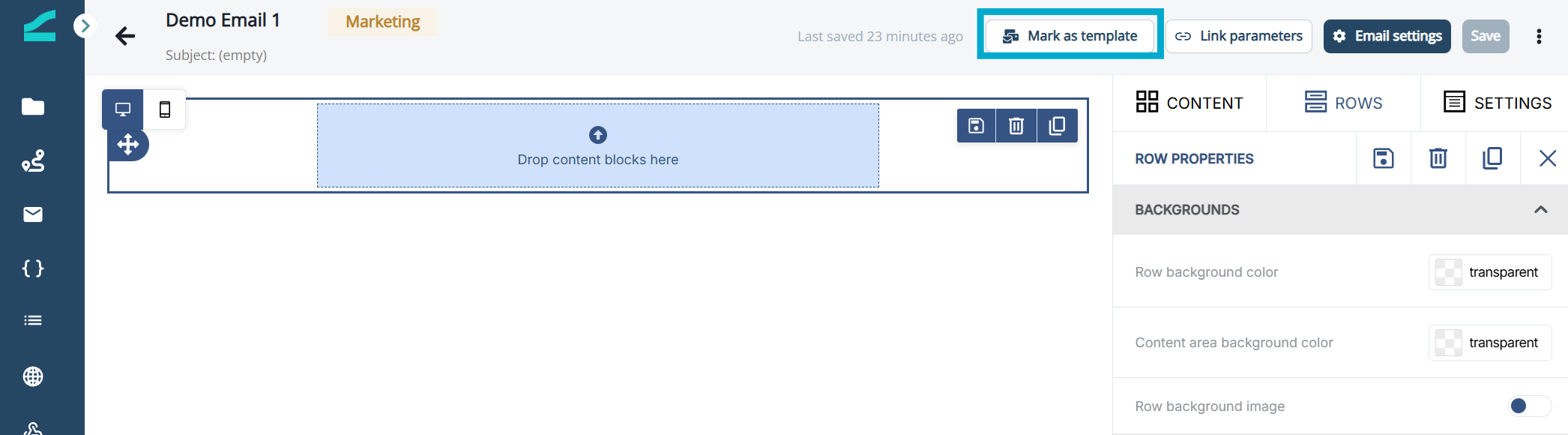
To make the email asset available as a template (for others to use as a starting point in their email builds), select **Mark as template**. The template will retain all current content and email settings.
Here you can:
* Overwrite global default parameters
* Add/edit custom parameters
### Mark as template
To make the email asset available as a template (for others to use as a starting point in their email builds), select **Mark as template**. The template will retain all current content and email settings.
 Once marked, the tag `Template` will be shown next to the email name in the Emails list.
Templates are just regular emails that happen to be reusable. You can:
* Open the template from the Emails list.
* Modify its content or settings.
* These changes will update the template and affect any future emails created from it.
* Editing a template will not affect any emails already created from the template.
#### Template Tips & Best Practices
* Name templates clearly so they're easily discoverable (e.g., "Promo Template – Summer 2025").
* Use templates for:
* Recurring campaign formats
* Product updates
* Onboarding flows
## Build with Visual Editor
Check out [Mastering the Beefree builder](https://academy.beefree.io/course/finding-your-way-around-the-builder) for a tutorial. Note that some capabilities may have a slightly different UI in the Inflection builder.
## Preview, Export, and Test
### Preview
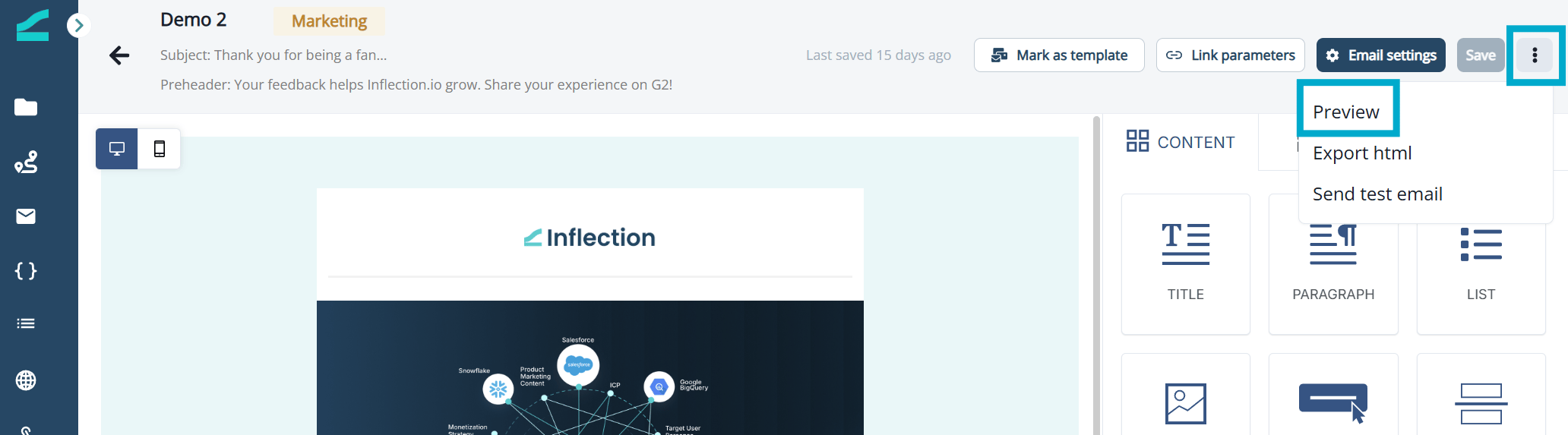
Preview email designs on **desktop** and **mobile** devices:
1. Click the ellipsis icon on the top right of the page.
2. Select **Preview** from the drop down.
Once marked, the tag `Template` will be shown next to the email name in the Emails list.
Templates are just regular emails that happen to be reusable. You can:
* Open the template from the Emails list.
* Modify its content or settings.
* These changes will update the template and affect any future emails created from it.
* Editing a template will not affect any emails already created from the template.
#### Template Tips & Best Practices
* Name templates clearly so they're easily discoverable (e.g., "Promo Template – Summer 2025").
* Use templates for:
* Recurring campaign formats
* Product updates
* Onboarding flows
## Build with Visual Editor
Check out [Mastering the Beefree builder](https://academy.beefree.io/course/finding-your-way-around-the-builder) for a tutorial. Note that some capabilities may have a slightly different UI in the Inflection builder.
## Preview, Export, and Test
### Preview
Preview email designs on **desktop** and **mobile** devices:
1. Click the ellipsis icon on the top right of the page.
2. Select **Preview** from the drop down.
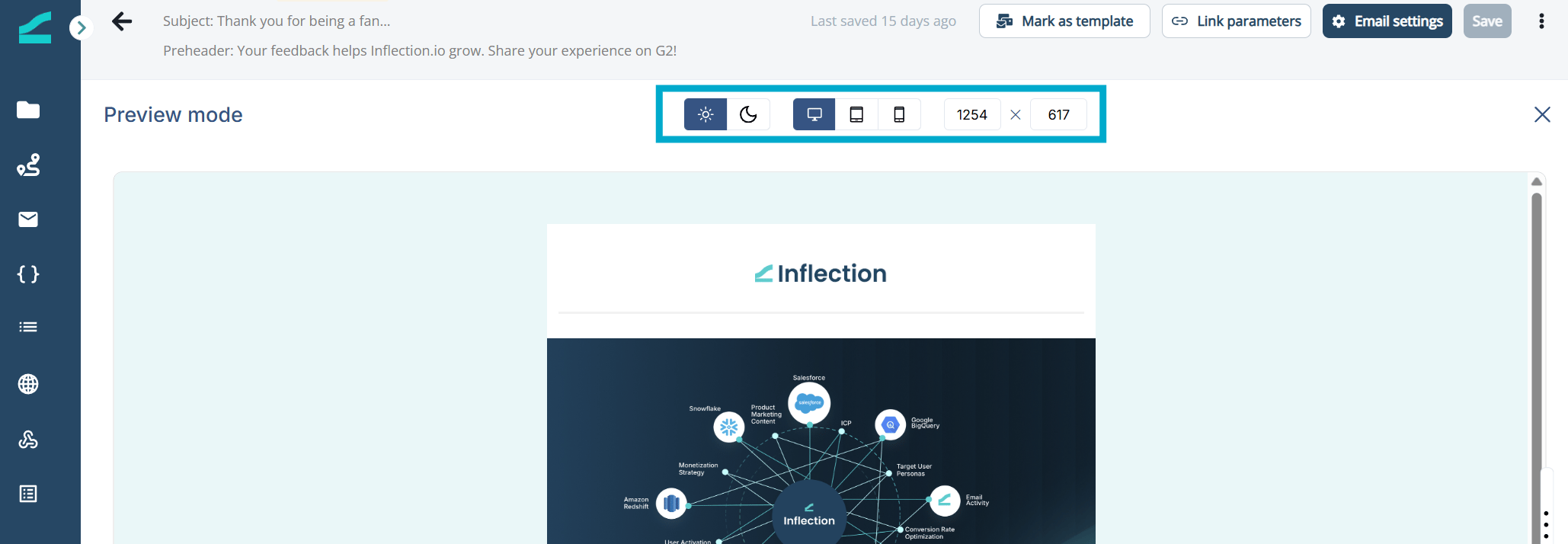
 3. Update the menu options to preview the email:
1. In light and dark mode
2. On a desktop, tablet and mobile
3. In custom dimensions
3. Update the menu options to preview the email:
1. In light and dark mode
2. On a desktop, tablet and mobile
3. In custom dimensions
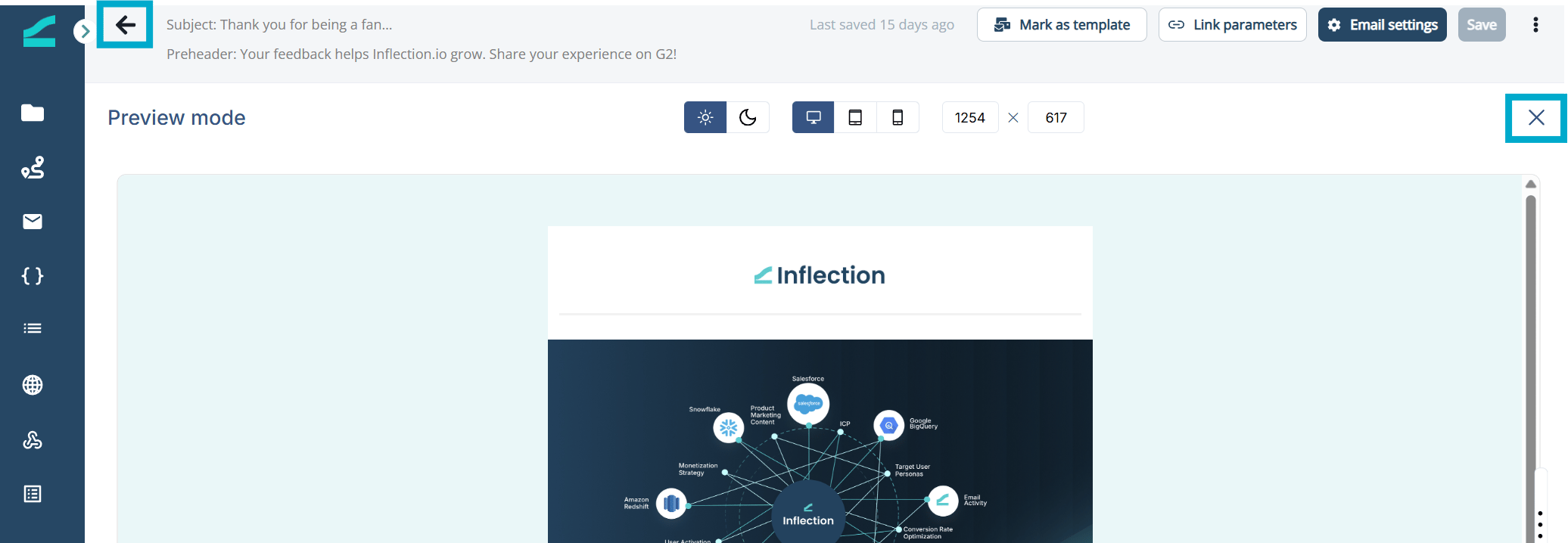
 4. Click the back arrow (top left) or exit icon (top right) to exit preview mode.
 ### Export as HTML
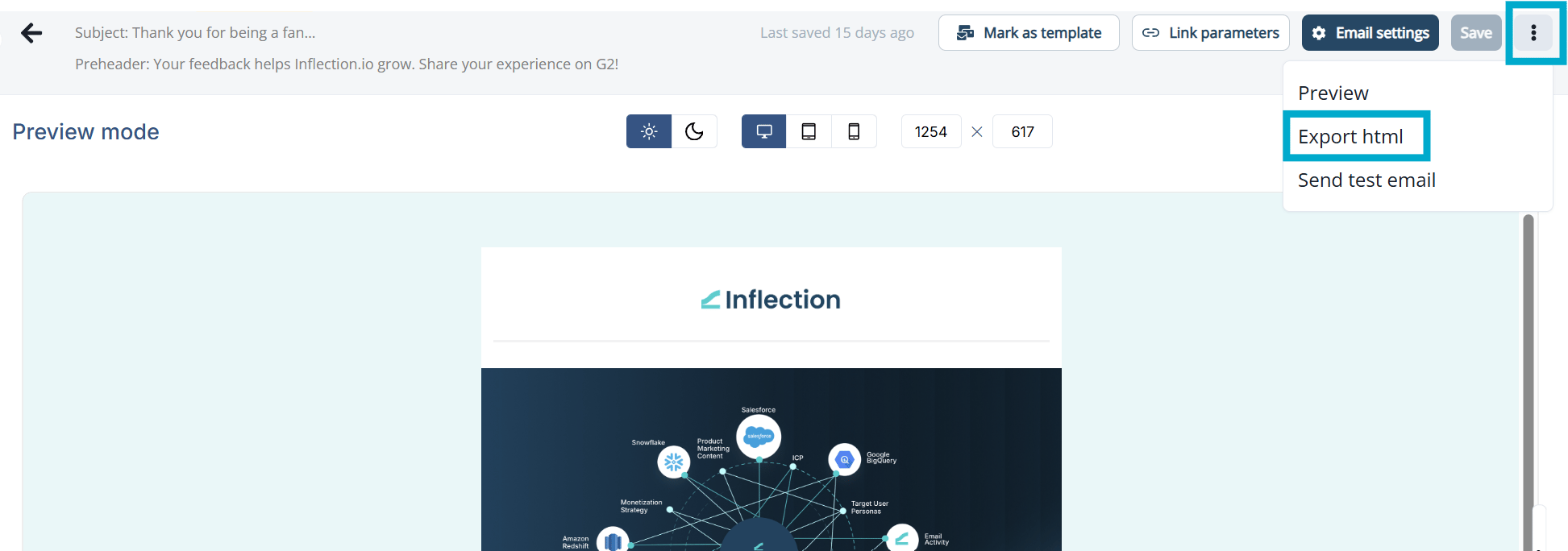
To export an email as an HTML file:
1. Click the ellipsis icon on the top right side of the email editor page.
2. Select **Export html**.
An HTML file will download to your device.
### Export as HTML
To export an email as an HTML file:
1. Click the ellipsis icon on the top right side of the email editor page.
2. Select **Export html**.
An HTML file will download to your device.
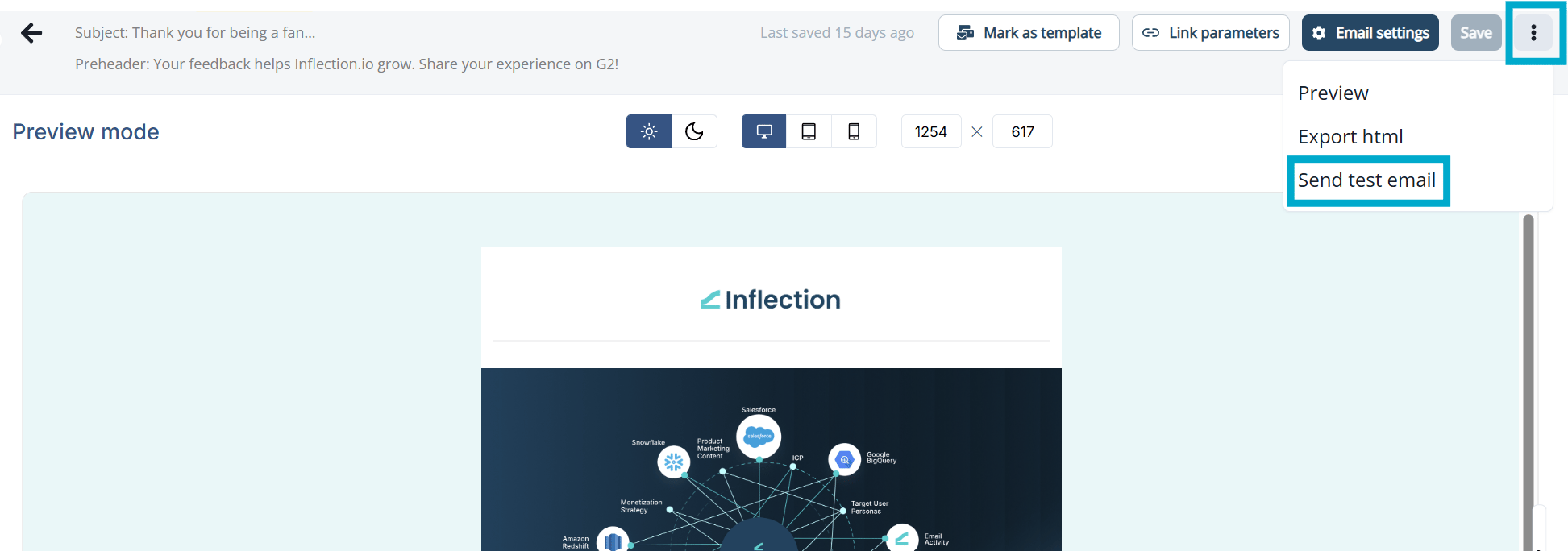
 ### Send test email
Send a test email to yourself, a colleague, or to your team:
1. Click on the ellipsis icon on the top right side.
2. Select **Send test email**.
3. In **Send to**, enter the email(s) to send the test email to.
4. In **Preview as a specific user**, enter the email address of an Inflection contact or user.
5. Click **Send preview**.
### Send test email
Send a test email to yourself, a colleague, or to your team:
1. Click on the ellipsis icon on the top right side.
2. Select **Send test email**.
3. In **Send to**, enter the email(s) to send the test email to.
4. In **Preview as a specific user**, enter the email address of an Inflection contact or user.
5. Click **Send preview**.
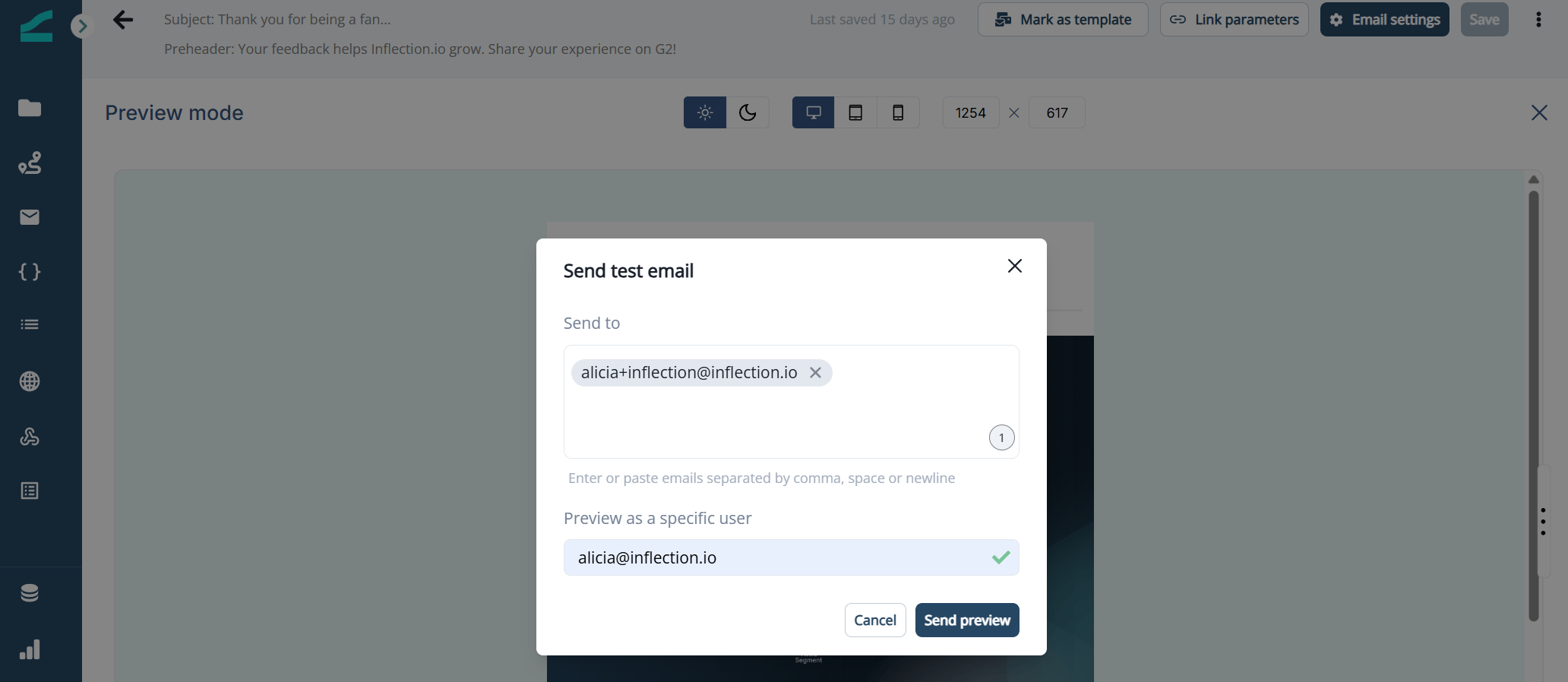 The preview user must exist as a contact or user in the Inflection database. A checkmark indicates that the contact exists in your contact database. If the email address you entered is not in the database, an error is displayed.
## Create an Unsubscribe link
To configure an unsubscribe link in your emails:
1. Select the text you want to link.
The preview user must exist as a contact or user in the Inflection database. A checkmark indicates that the contact exists in your contact database. If the email address you entered is not in the database, an error is displayed.
## Create an Unsubscribe link
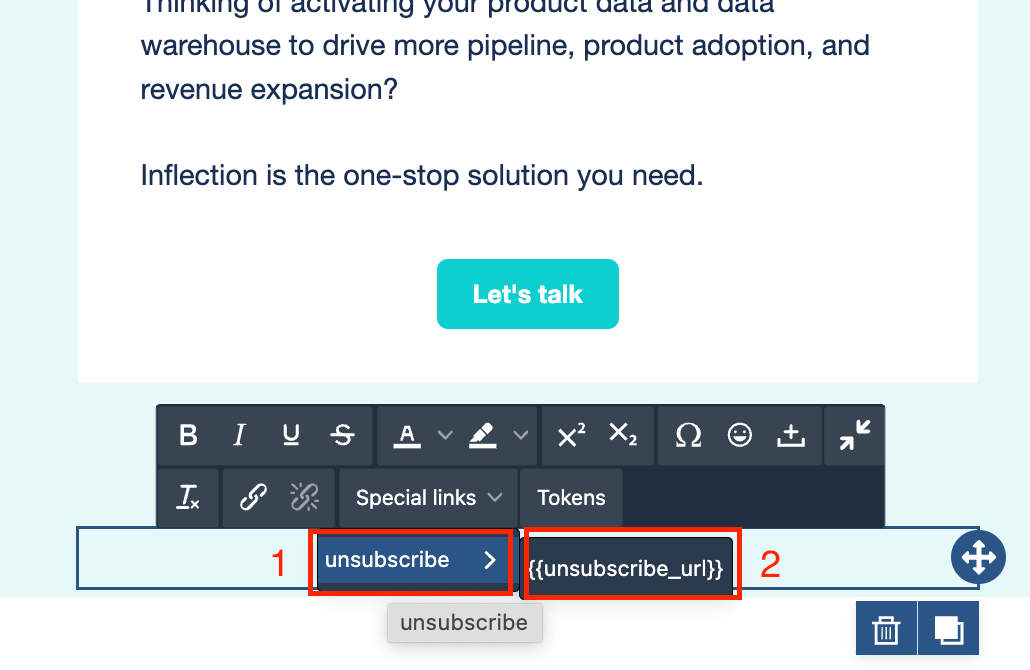
To configure an unsubscribe link in your emails:
1. Select the text you want to link.
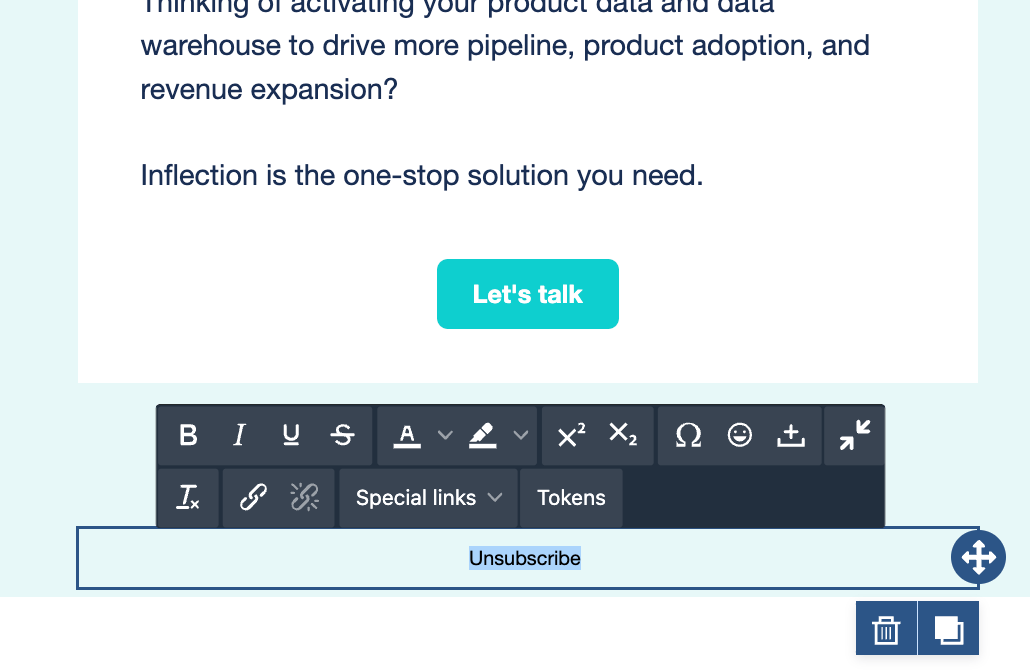 2. Select the **Special links** option on the tool bar that appears.
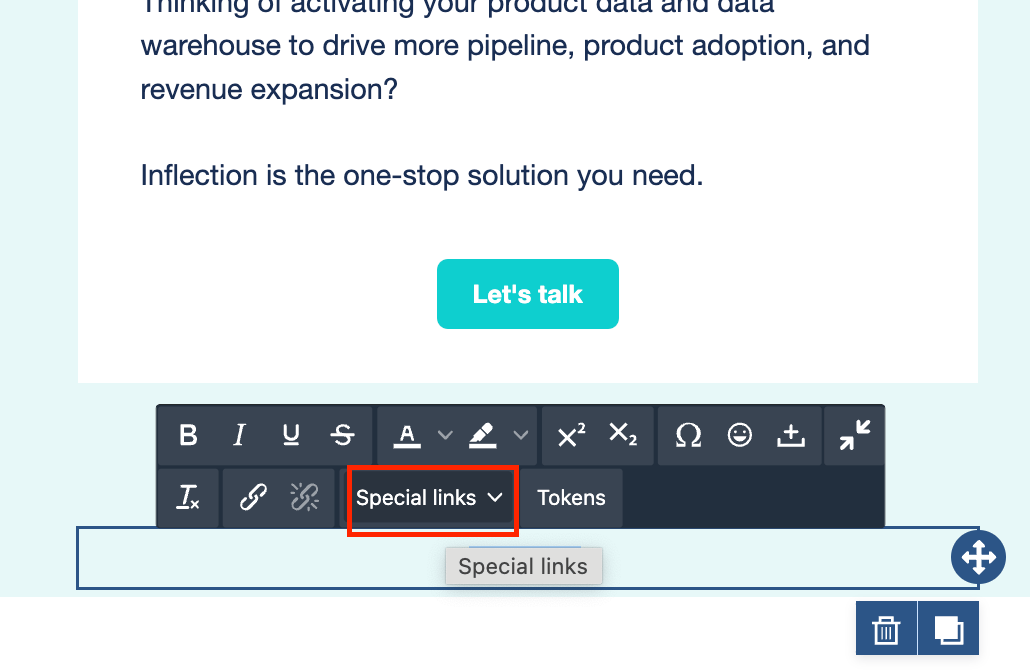 3. Select **unsubscribe** and select the token that slides out. The link is now configured.
 ## Build with HTML Editor (Advanced)
If you selected the **HTML editor (Advanced)** option when creating the email, you get a raw HTML code editor instead of the visual builder. Paste your HTML, including any personalization tokens, into the code editor, then click **Save**.
### Preview Your HTML Email
After saving, you can preview how the HTML renders as an email:
1. Click **Preview email** in the top-right toolbar.
2. The **Email preview** drawer opens and renders your HTML, including externally-hosted images. It opens in **Desktop** view by default; toggle between **Desktop** and **mobile** to check how the email renders on each.
## Build with HTML Editor (Advanced)
If you selected the **HTML editor (Advanced)** option when creating the email, you get a raw HTML code editor instead of the visual builder. Paste your HTML, including any personalization tokens, into the code editor, then click **Save**.
### Preview Your HTML Email
After saving, you can preview how the HTML renders as an email:
1. Click **Preview email** in the top-right toolbar.
2. The **Email preview** drawer opens and renders your HTML, including externally-hosted images. It opens in **Desktop** view by default; toggle between **Desktop** and **mobile** to check how the email renders on each.
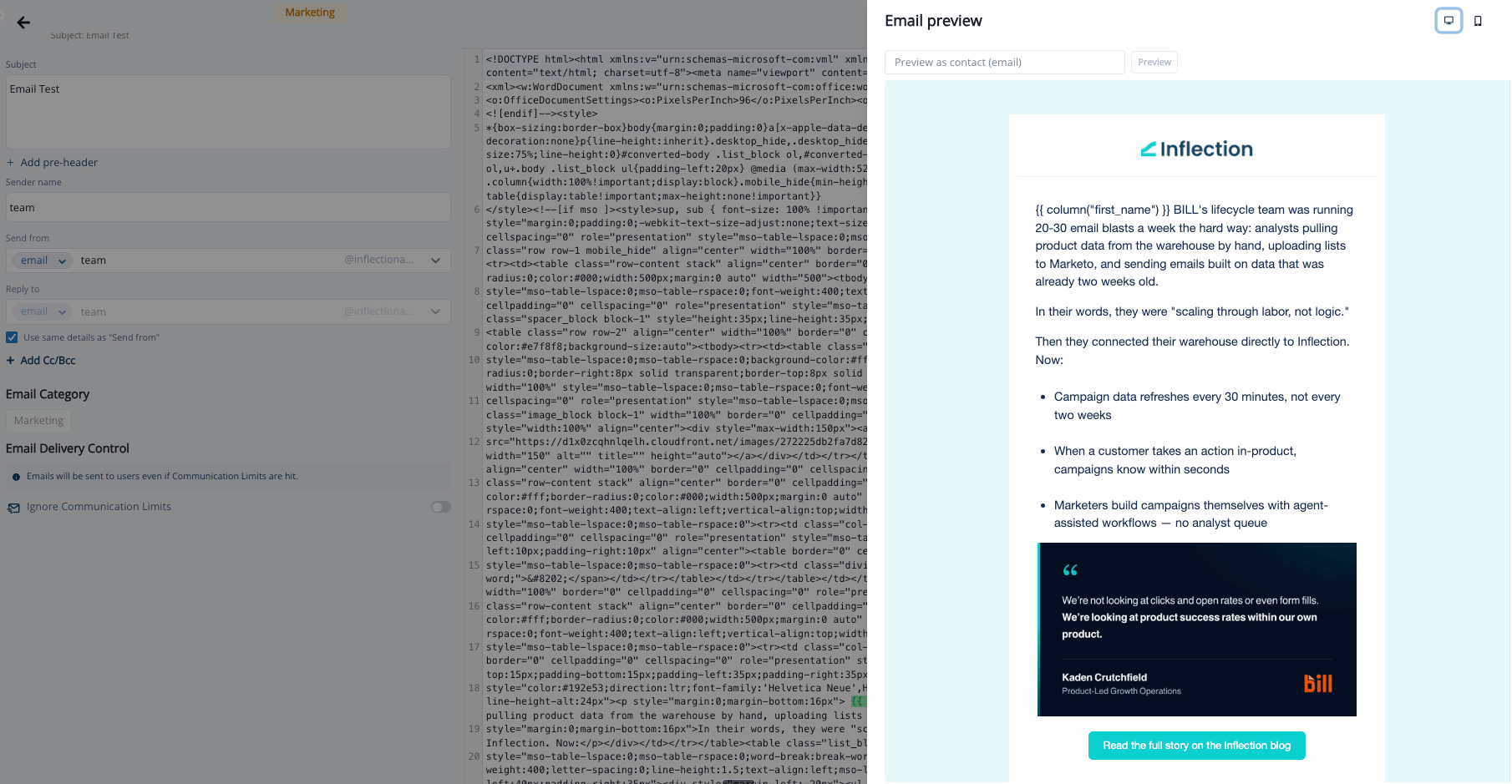 3. To see the email as a specific contact would, enter the contact's email in the **Preview as contact (email)** field and click **Preview** (or press Enter). Personalization tokens resolve to that contact's real values.
4. Click the clear (✕) control to return to the unpersonalized template view.
# Common Questions
## Avoiding lost or overwritten edits
The email editor can silently lose your in-progress edits if the same email is open in more than one place at once.
### What causes it
* Having the same email open in **multiple browser tabs or windows** at the same time.
* Having the same email open by **more than one person** at the same time.
* Opening several email templates in quick succession, before each one has fully finished loading.
Any of these can cause a refresh or auto-save to overwrite your latest changes with an older saved version, or — in some cases — sign you out of the editor entirely.
### How to avoid it
1. Open only one email template at a time, and let it fully finish loading before opening another.
2. Don't co-edit the same email or journey in a second tab, a second browser window, or with a teammate at the same time. Coordinate with your team so only one person edits a given email at a time.
3. Save frequently rather than leaving large batches of unsaved changes open.
> **Note:** If you open several templates back-to-back without waiting for each to load, you may be logged out of Inflection unexpectedly. Opening one template at a time, letting it load, and then opening the next avoids this.
### If a template's formatting corrupts and won't fix in place
Occasionally a template's formatting (for example, list numbering) can become corrupted in a way that doesn't fix itself no matter what you edit. If this happens and troubleshooting the original doesn't resolve it:
1. Clone the template to a fresh copy.
2. Continue your edits in the clone rather than the original.
This is a faster path to a working email than continuing to debug a corrupted original.
## Test-send delays and throttling
If test emails are arriving late (delays of up to \~10 minutes) or not arriving at all, this is usually a throttling issue rather than a platform outage.
### Why it happens
Sending a **high volume of test emails concentrated on one recipient** (for example, several team members each sending multiple test versions to the same inbox) can cause that recipient's mail server to throttle or defer delivery.
### How to avoid or work around it
* **Rotate recipients** when sending a batch of test emails rather than concentrating them on one address.
* If you need a test to go through immediately and suspect a provider-side throttle, try sending to a **non-Google address** to sidestep a Google-specific throttle.
## Hosting images
### Images
* **SVG images don't render in some email clients.** If an image or icon isn't displaying (particularly on desktop), check whether it's an SVG file. Convert it to PNG or JPEG and re-upload.
* **Broken images after switching from another platform.** If images (like a logo or social icons in your footer) stop rendering with no changes made on your end, check whether those image URLs still point to a previous email platform's asset host. If you've migrated from another ESP, re-upload those images to Inflection (or another live image host) rather than linking to the old platform's URLs, which may go stale or become unavailable.
## HTML, CSS, and formatting quirks
### Responsive / plain-text emails
If a plain-text email's layout (for example, a table) renders wider than expected:
* Table width may be defined at the template level.
* You may be able to influence it by adding CSS through an HTML code block.
Since Inflection's email editor is built on BeeFree, BeeFree's own help center is a useful secondary resource for raw CSS/HTML customization questions that go beyond Inflection-specific settings.
### Sender name and preheader text
* Special characters in your sender name (commas, periods, and other symbols — for example `Smith, Jane` or `Company, Inc.`) can cause some email clients to wrap the sender name in quotation marks in the inbox view. This behavior varies by email client.
* If you disable preheader text, most email clients will automatically pull the first visible text from your email body to fill that preview space instead.
## Testing links in preview mode
If a link in your email appears broken specifically when you click it **inside the editor's preview mode** (for example, showing an `ERR_BLOCKED_BY_RESPONSE` error), but you haven't tested it from an actual inbox yet:
* Some third-party sites (Facebook is a known example) intentionally block their pages from loading inside embedded preview contexts like Inflection's builder preview, as a security measure — even though the same link works normally when clicked from a real inbox.
* **Always confirm link behavior with a real test-send to your own inbox**, not just the in-editor preview, before concluding a link is broken.
This documentation is built and hosted on [Mintlify](https://mintlify.com), a developer documentation platform.
3. To see the email as a specific contact would, enter the contact's email in the **Preview as contact (email)** field and click **Preview** (or press Enter). Personalization tokens resolve to that contact's real values.
4. Click the clear (✕) control to return to the unpersonalized template view.
# Common Questions
## Avoiding lost or overwritten edits
The email editor can silently lose your in-progress edits if the same email is open in more than one place at once.
### What causes it
* Having the same email open in **multiple browser tabs or windows** at the same time.
* Having the same email open by **more than one person** at the same time.
* Opening several email templates in quick succession, before each one has fully finished loading.
Any of these can cause a refresh or auto-save to overwrite your latest changes with an older saved version, or — in some cases — sign you out of the editor entirely.
### How to avoid it
1. Open only one email template at a time, and let it fully finish loading before opening another.
2. Don't co-edit the same email or journey in a second tab, a second browser window, or with a teammate at the same time. Coordinate with your team so only one person edits a given email at a time.
3. Save frequently rather than leaving large batches of unsaved changes open.
> **Note:** If you open several templates back-to-back without waiting for each to load, you may be logged out of Inflection unexpectedly. Opening one template at a time, letting it load, and then opening the next avoids this.
### If a template's formatting corrupts and won't fix in place
Occasionally a template's formatting (for example, list numbering) can become corrupted in a way that doesn't fix itself no matter what you edit. If this happens and troubleshooting the original doesn't resolve it:
1. Clone the template to a fresh copy.
2. Continue your edits in the clone rather than the original.
This is a faster path to a working email than continuing to debug a corrupted original.
## Test-send delays and throttling
If test emails are arriving late (delays of up to \~10 minutes) or not arriving at all, this is usually a throttling issue rather than a platform outage.
### Why it happens
Sending a **high volume of test emails concentrated on one recipient** (for example, several team members each sending multiple test versions to the same inbox) can cause that recipient's mail server to throttle or defer delivery.
### How to avoid or work around it
* **Rotate recipients** when sending a batch of test emails rather than concentrating them on one address.
* If you need a test to go through immediately and suspect a provider-side throttle, try sending to a **non-Google address** to sidestep a Google-specific throttle.
## Hosting images
### Images
* **SVG images don't render in some email clients.** If an image or icon isn't displaying (particularly on desktop), check whether it's an SVG file. Convert it to PNG or JPEG and re-upload.
* **Broken images after switching from another platform.** If images (like a logo or social icons in your footer) stop rendering with no changes made on your end, check whether those image URLs still point to a previous email platform's asset host. If you've migrated from another ESP, re-upload those images to Inflection (or another live image host) rather than linking to the old platform's URLs, which may go stale or become unavailable.
## HTML, CSS, and formatting quirks
### Responsive / plain-text emails
If a plain-text email's layout (for example, a table) renders wider than expected:
* Table width may be defined at the template level.
* You may be able to influence it by adding CSS through an HTML code block.
Since Inflection's email editor is built on BeeFree, BeeFree's own help center is a useful secondary resource for raw CSS/HTML customization questions that go beyond Inflection-specific settings.
### Sender name and preheader text
* Special characters in your sender name (commas, periods, and other symbols — for example `Smith, Jane` or `Company, Inc.`) can cause some email clients to wrap the sender name in quotation marks in the inbox view. This behavior varies by email client.
* If you disable preheader text, most email clients will automatically pull the first visible text from your email body to fill that preview space instead.
## Testing links in preview mode
If a link in your email appears broken specifically when you click it **inside the editor's preview mode** (for example, showing an `ERR_BLOCKED_BY_RESPONSE` error), but you haven't tested it from an actual inbox yet:
* Some third-party sites (Facebook is a known example) intentionally block their pages from loading inside embedded preview contexts like Inflection's builder preview, as a security measure — even though the same link works normally when clicked from a real inbox.
* **Always confirm link behavior with a real test-send to your own inbox**, not just the in-editor preview, before concluding a link is broken.
This documentation is built and hosted on [Mintlify](https://mintlify.com), a developer documentation platform.