> ## Documentation Index
> Fetch the complete documentation index at: https://docs.inflection.io/llms.txt
> Use this file to discover all available pages before exploring further.
# Amplitude
> Use Amplitude product activity to build audiences, trigger journeys, and personalize messaging in Inflection.
Amplitude is a product analytics platform that captures user and group behavior across web, mobile, and server applications. The Amplitude integration sends those events to Inflection, so you can use Amplitude product activity to build audiences, trigger journeys, and personalize messaging in Inflection.
This article covers Amplitude as a **source** (Read flow), i.e., events flowing from Amplitude into Inflection. Amplitude as a destination is not yet supported.
## What You'll Receive From Amplitude
Inflection ingests events and user properties that Amplitude pushes through the direct partner integration. **Event names and event properties** become product activities in Inflection, available in the Product Data Explorer. **User properties** sent on `identify` calls map to Inflection user attributes.
## Prerequisites
Before you start, make sure you have:
* Admin access to your Inflection workspace.
* Admin access to your Amplitude project and permission to configure destinations in the Amplitude Integration Portal.
## Set Up the Amplitude Connection
Follow these steps to connect Amplitude as a source. Inflection generates a unique endpoint URL and API key for your workspace; you paste both into Amplitude's Integration Portal so Amplitude can push events to Inflection.
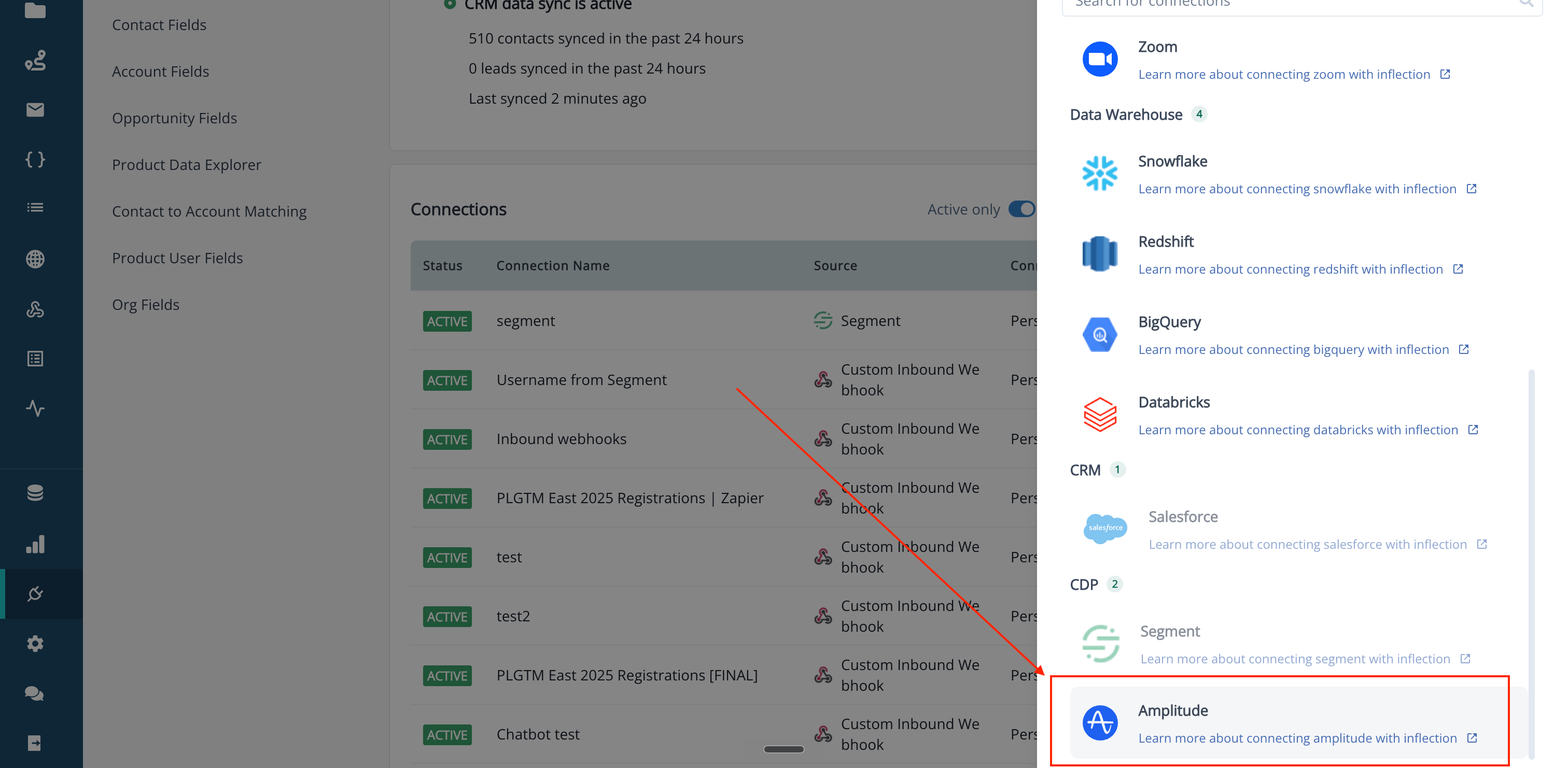
### Step 1: Open the Amplitude Connection
In Inflection, open the **Connections** sidebar and click **Amplitude**.
 ### Step 2: Generate Your API Key
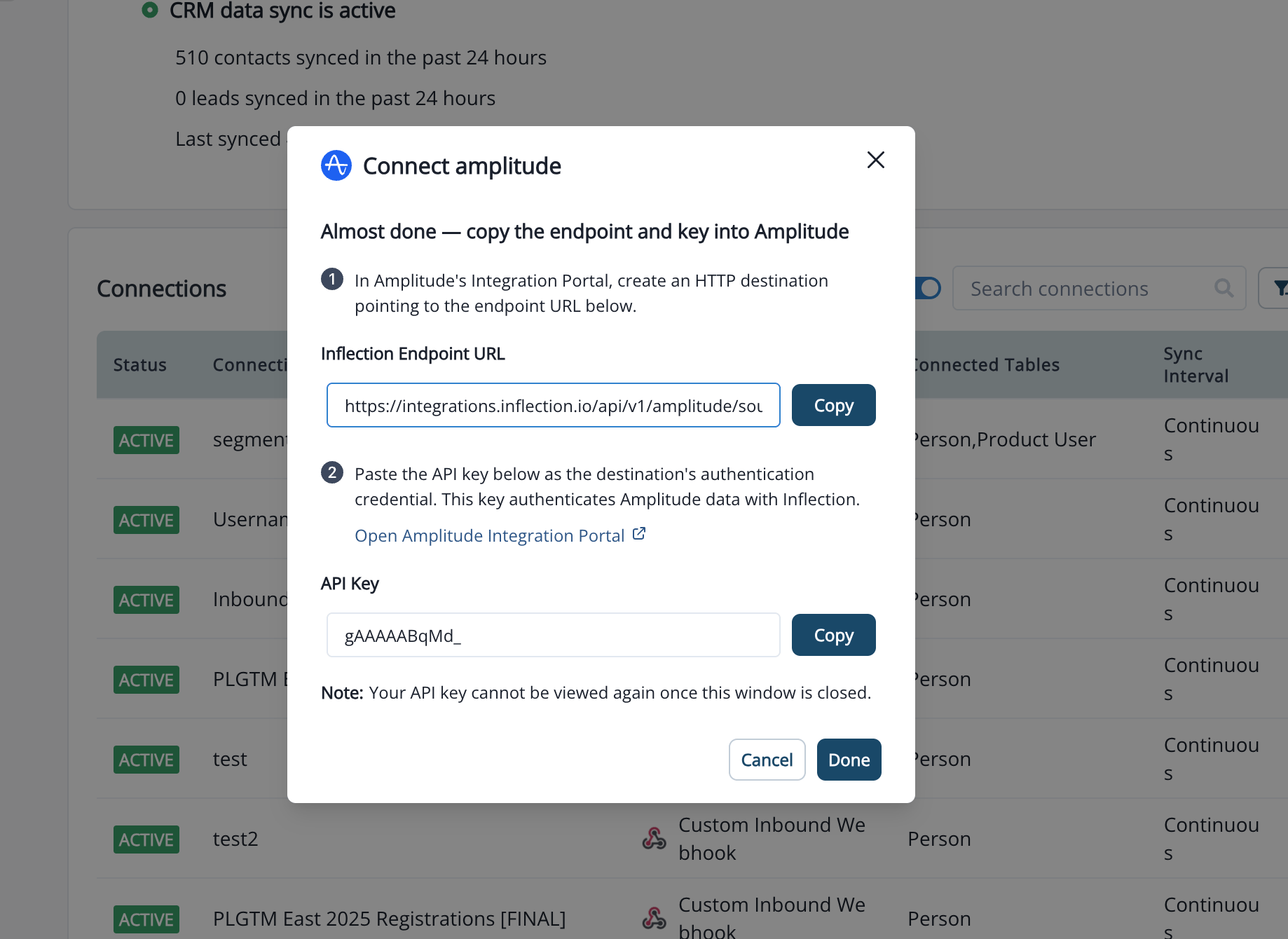
The **Connect Amplitude** modal opens.
1. Review the connection summary.
2. Click **Generate API Key**.
3. Two fields appear:
* **Inflection Endpoint URL:** the HTTPS endpoint Amplitude will push events to. Click **Copy**.
* **API Key:** the authentication key Amplitude will use. Click **Copy**. Treat this key as sensitive — anyone with the key can send events to your Inflection workspace.
4. Click **Done** to save the connection.
### Step 2: Generate Your API Key
The **Connect Amplitude** modal opens.
1. Review the connection summary.
2. Click **Generate API Key**.
3. Two fields appear:
* **Inflection Endpoint URL:** the HTTPS endpoint Amplitude will push events to. Click **Copy**.
* **API Key:** the authentication key Amplitude will use. Click **Copy**. Treat this key as sensitive — anyone with the key can send events to your Inflection workspace.
4. Click **Done** to save the connection.
 ### Step 3 Configure the Destination in Amplitude
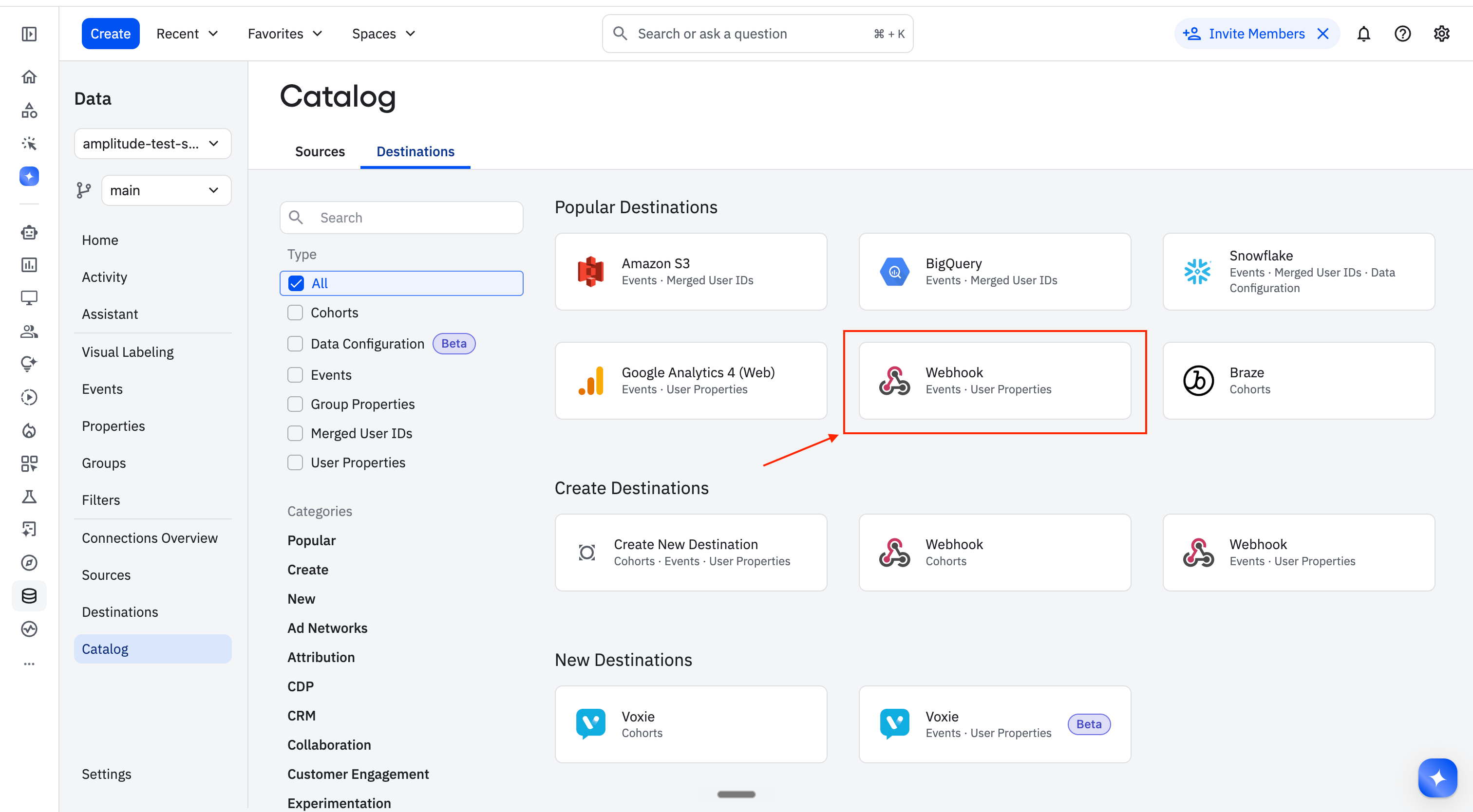
In Amplitude:
1. Login to Amplitude as admin.
2. Go to **Data** → **Destinations** from the left menu bar.
3. Click **Add Destination** → **Webhook** type (Events and Users)
### Step 3 Configure the Destination in Amplitude
In Amplitude:
1. Login to Amplitude as admin.
2. Go to **Data** → **Destinations** from the left menu bar.
3. Click **Add Destination** → **Webhook** type (Events and Users)
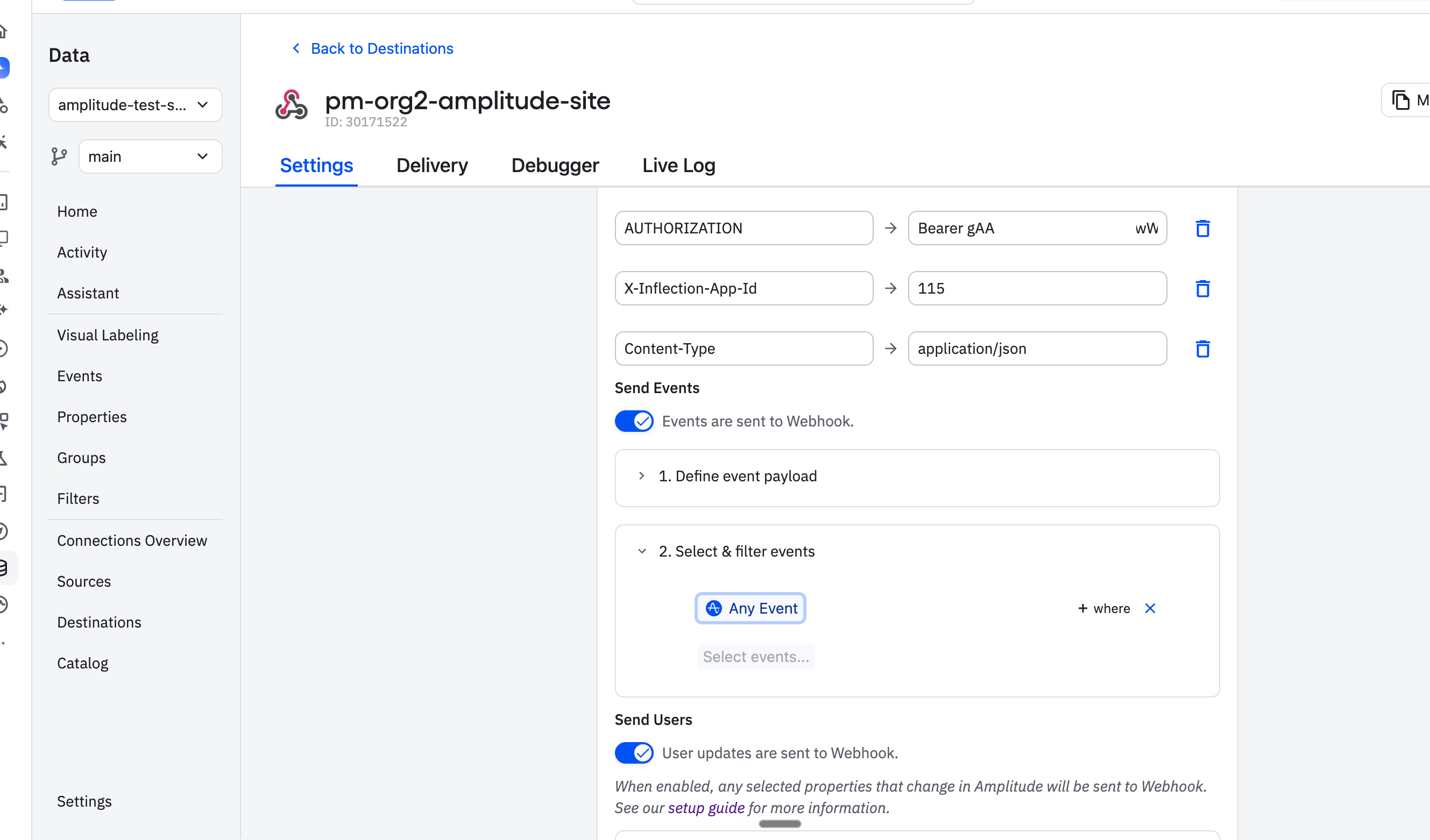
 4. Copy these data points -
1. Webhook URL: [https://amplitude.webhook.inflection.io/integrations/amplitude/events](https://amplitude.webhook.inflection.io/integrations/amplitude/events)
2. Add these in Headers as key-value:
1. AUTHORIZATION: Bearer \
2. X-Inflection-App-Id: **ask Inflection team for this**
3. Content-Type: application/json
5. Send events:
1. Define event custom payload - paste this:
```javascript theme={null}
<#setting number_format="0.####">
{
"type": "track",
"messageId": <#if input.uuid??>"${input.uuid}"<#elseif input.insert_id??>"${input.insert_id}"<#else>"amp-${(input.user_id!'unknown')}-${input.event_time}",
"userId": <#if input.user_id??>"${input.user_id}"<#else>null,
"eventTime": "${input.event_time}",
"email": <#if input.user_properties?? && input.user_properties.email??>"${input.user_properties.email}"<#else>null,
"eventName": "${input.event_type}",
"properties": {<#if input.event_properties??><#list input.event_properties?keys as key><#assign value = input.event_properties[key]>"${key}": <#if value?is_number || value?is_boolean>${value}<#else>"${value}"<#if key_has_next>,},
"userProperties": {<#if input.user_properties??><#list input.user_properties?keys as key><#assign value = input.user_properties[key]>"${key}": <#if value?is_number || value?is_boolean>${value}<#else>"${value}"<#if key_has_next>,},
"orgIds": <#if parameters.groupTypeKey?has_content && input.groups?? && input.groups[parameters.groupTypeKey]??><#if input.groups[parameters.groupTypeKey]?is_sequence>[<#list input.groups[parameters.groupTypeKey] as v>"${v}"<#sep>,]<#else>["${input.groups[parameters.groupTypeKey]}"]<#else>[],
"sessionId": <#if input.session_id??><#if input.session_id?is_number>${input.session_id?c}<#else>"${input.session_id}"<#else>null,
"deviceId": <#if input.device_id??>"${input.device_id}"<#else>null,
"platform": <#if input.platform??>"${input.platform}"<#else>null,
"osName": <#if input.os_name??>"${input.os_name}"<#else>null,
"country": <#if input.country??>"${input.country}"<#else>null,
"region": <#if input.region??>"${input.region}"<#else>null,
"city": <#if input.city??>"${input.city}"<#else>null,
"language": <#if input.language??>"${input.language}"<#else>null,
"appVersion": <#if input.version_name??>"${input.version_name}"<#else>null,
"revenue": <#if input.revenue??><#if input.revenue?is_number>${input.revenue?c}<#else>"${input.revenue}"<#else>null,
"revenueType": <#if input.revenue_type??>"${input.revenue_type}"<#else>null,
"productId": <#if input.product_id??>"${input.product_id}"<#else>null,
"insertId": <#if input.insert_id??>"${input.insert_id}"<#else>null,
"library": <#if input.library??>"${input.library}"<#else>null,
"osVersion": <#if input.os_version??>"${input.os_version}"<#else>null,
"deviceBrand": <#if input.device_brand??>"${input.device_brand}"<#else>null,
"deviceModel": <#if input.device_model??>"${input.device_model}"<#else>null,
"deviceType": <#if input.device_type??>"${input.device_type}"<#else>null,
"ipAddress": <#if input.ip_address??>"${input.ip_address}"<#else>null,
"dma": <#if input.dma??>"${input.dma}"<#else>null,
"amplitudeUserId": <#if input.amplitude_id??><#if input.amplitude_id?is_number>${input.amplitude_id?c}<#else>"${input.amplitude_id}"<#else>null
}
```
6. Enable the events you want to forward to Inflection.
4. Copy these data points -
1. Webhook URL: [https://amplitude.webhook.inflection.io/integrations/amplitude/events](https://amplitude.webhook.inflection.io/integrations/amplitude/events)
2. Add these in Headers as key-value:
1. AUTHORIZATION: Bearer \
2. X-Inflection-App-Id: **ask Inflection team for this**
3. Content-Type: application/json
5. Send events:
1. Define event custom payload - paste this:
```javascript theme={null}
<#setting number_format="0.####">
{
"type": "track",
"messageId": <#if input.uuid??>"${input.uuid}"<#elseif input.insert_id??>"${input.insert_id}"<#else>"amp-${(input.user_id!'unknown')}-${input.event_time}",
"userId": <#if input.user_id??>"${input.user_id}"<#else>null,
"eventTime": "${input.event_time}",
"email": <#if input.user_properties?? && input.user_properties.email??>"${input.user_properties.email}"<#else>null,
"eventName": "${input.event_type}",
"properties": {<#if input.event_properties??><#list input.event_properties?keys as key><#assign value = input.event_properties[key]>"${key}": <#if value?is_number || value?is_boolean>${value}<#else>"${value}"<#if key_has_next>,},
"userProperties": {<#if input.user_properties??><#list input.user_properties?keys as key><#assign value = input.user_properties[key]>"${key}": <#if value?is_number || value?is_boolean>${value}<#else>"${value}"<#if key_has_next>,},
"orgIds": <#if parameters.groupTypeKey?has_content && input.groups?? && input.groups[parameters.groupTypeKey]??><#if input.groups[parameters.groupTypeKey]?is_sequence>[<#list input.groups[parameters.groupTypeKey] as v>"${v}"<#sep>,]<#else>["${input.groups[parameters.groupTypeKey]}"]<#else>[],
"sessionId": <#if input.session_id??><#if input.session_id?is_number>${input.session_id?c}<#else>"${input.session_id}"<#else>null,
"deviceId": <#if input.device_id??>"${input.device_id}"<#else>null,
"platform": <#if input.platform??>"${input.platform}"<#else>null,
"osName": <#if input.os_name??>"${input.os_name}"<#else>null,
"country": <#if input.country??>"${input.country}"<#else>null,
"region": <#if input.region??>"${input.region}"<#else>null,
"city": <#if input.city??>"${input.city}"<#else>null,
"language": <#if input.language??>"${input.language}"<#else>null,
"appVersion": <#if input.version_name??>"${input.version_name}"<#else>null,
"revenue": <#if input.revenue??><#if input.revenue?is_number>${input.revenue?c}<#else>"${input.revenue}"<#else>null,
"revenueType": <#if input.revenue_type??>"${input.revenue_type}"<#else>null,
"productId": <#if input.product_id??>"${input.product_id}"<#else>null,
"insertId": <#if input.insert_id??>"${input.insert_id}"<#else>null,
"library": <#if input.library??>"${input.library}"<#else>null,
"osVersion": <#if input.os_version??>"${input.os_version}"<#else>null,
"deviceBrand": <#if input.device_brand??>"${input.device_brand}"<#else>null,
"deviceModel": <#if input.device_model??>"${input.device_model}"<#else>null,
"deviceType": <#if input.device_type??>"${input.device_type}"<#else>null,
"ipAddress": <#if input.ip_address??>"${input.ip_address}"<#else>null,
"dma": <#if input.dma??>"${input.dma}"<#else>null,
"amplitudeUserId": <#if input.amplitude_id??><#if input.amplitude_id?is_number>${input.amplitude_id?c}<#else>"${input.amplitude_id}"<#else>null
}
```
6. Enable the events you want to forward to Inflection.
 7. Send users:
1. Define user custom payload - paste this:
```javascript theme={null}
<#setting number_format="0.####">
<#function js v>
<#if v?is_boolean || v?is_number><#return v?c>
<#elseif v?is_string><#return '"' + v?json_string + '"'>
<#elseif v?is_sequence><#local items = []><#list v as it><#local items = items + [js(it)]><#return '[' + items?join(',') + ']'>
<#elseif v?is_hash_ex><#local entries = []><#list v?keys as k><#local entries = entries + ['"' + k?json_string + '":' + js(v[k])]><#return '{' + entries?join(',') + '}'>
<#else><#return 'null'>
{
"type": "identify",
"messageId": <#if input.uuid??>${js(input.uuid)}<#elseif input.insert_id??>${js(input.insert_id)}<#else>${js("amp-id-" + (input.user_id!'unknown') + "-" + (input.event_time!'unknown'))},
"userId": <#if input.user_id??>${js(input.user_id)}<#else>null,
"eventTime": <#if input.event_time??>${js(input.event_time)}<#else>null,
"email": <#if input.user_properties?? && input.user_properties.email??>${js(input.user_properties.email)}<#else>null,
"userProperties": <#if input.user_properties??>${js(input.user_properties)}<#else>{},
"sessionId": <#if input.session_id??>${js(input.session_id)}<#else>null,
"deviceId": <#if input.device_id??>${js(input.device_id)}<#else>null,
"platform": <#if input.platform??>${js(input.platform)}<#else>null,
"country": <#if input.country??>${js(input.country)}<#else>null,
"language": <#if input.language??>${js(input.language)}<#else>null,
"appVersion": <#if input.version_name??>${js(input.version_name)}<#else>null,
"library": <#if input.library??>${js(input.library)}<#else>null,
"osVersion": <#if input.os_version??>${js(input.os_version)}<#else>null,
"ipAddress": <#if input.ip_address??>${js(input.ip_address)}<#else>null,
"amplitudeUserId": <#if input.amplitude_id??>${js(input.amplitude_id)}<#else>null
}
```
8. Enable the users you want to forward to Inflection.
7. Send users:
1. Define user custom payload - paste this:
```javascript theme={null}
<#setting number_format="0.####">
<#function js v>
<#if v?is_boolean || v?is_number><#return v?c>
<#elseif v?is_string><#return '"' + v?json_string + '"'>
<#elseif v?is_sequence><#local items = []><#list v as it><#local items = items + [js(it)]><#return '[' + items?join(',') + ']'>
<#elseif v?is_hash_ex><#local entries = []><#list v?keys as k><#local entries = entries + ['"' + k?json_string + '":' + js(v[k])]><#return '{' + entries?join(',') + '}'>
<#else><#return 'null'>
{
"type": "identify",
"messageId": <#if input.uuid??>${js(input.uuid)}<#elseif input.insert_id??>${js(input.insert_id)}<#else>${js("amp-id-" + (input.user_id!'unknown') + "-" + (input.event_time!'unknown'))},
"userId": <#if input.user_id??>${js(input.user_id)}<#else>null,
"eventTime": <#if input.event_time??>${js(input.event_time)}<#else>null,
"email": <#if input.user_properties?? && input.user_properties.email??>${js(input.user_properties.email)}<#else>null,
"userProperties": <#if input.user_properties??>${js(input.user_properties)}<#else>{},
"sessionId": <#if input.session_id??>${js(input.session_id)}<#else>null,
"deviceId": <#if input.device_id??>${js(input.device_id)}<#else>null,
"platform": <#if input.platform??>${js(input.platform)}<#else>null,
"country": <#if input.country??>${js(input.country)}<#else>null,
"language": <#if input.language??>${js(input.language)}<#else>null,
"appVersion": <#if input.version_name??>${js(input.version_name)}<#else>null,
"library": <#if input.library??>${js(input.library)}<#else>null,
"osVersion": <#if input.os_version??>${js(input.os_version)}<#else>null,
"ipAddress": <#if input.ip_address??>${js(input.ip_address)}<#else>null,
"amplitudeUserId": <#if input.amplitude_id??>${js(input.amplitude_id)}<#else>null
}
```
8. Enable the users you want to forward to Inflection.
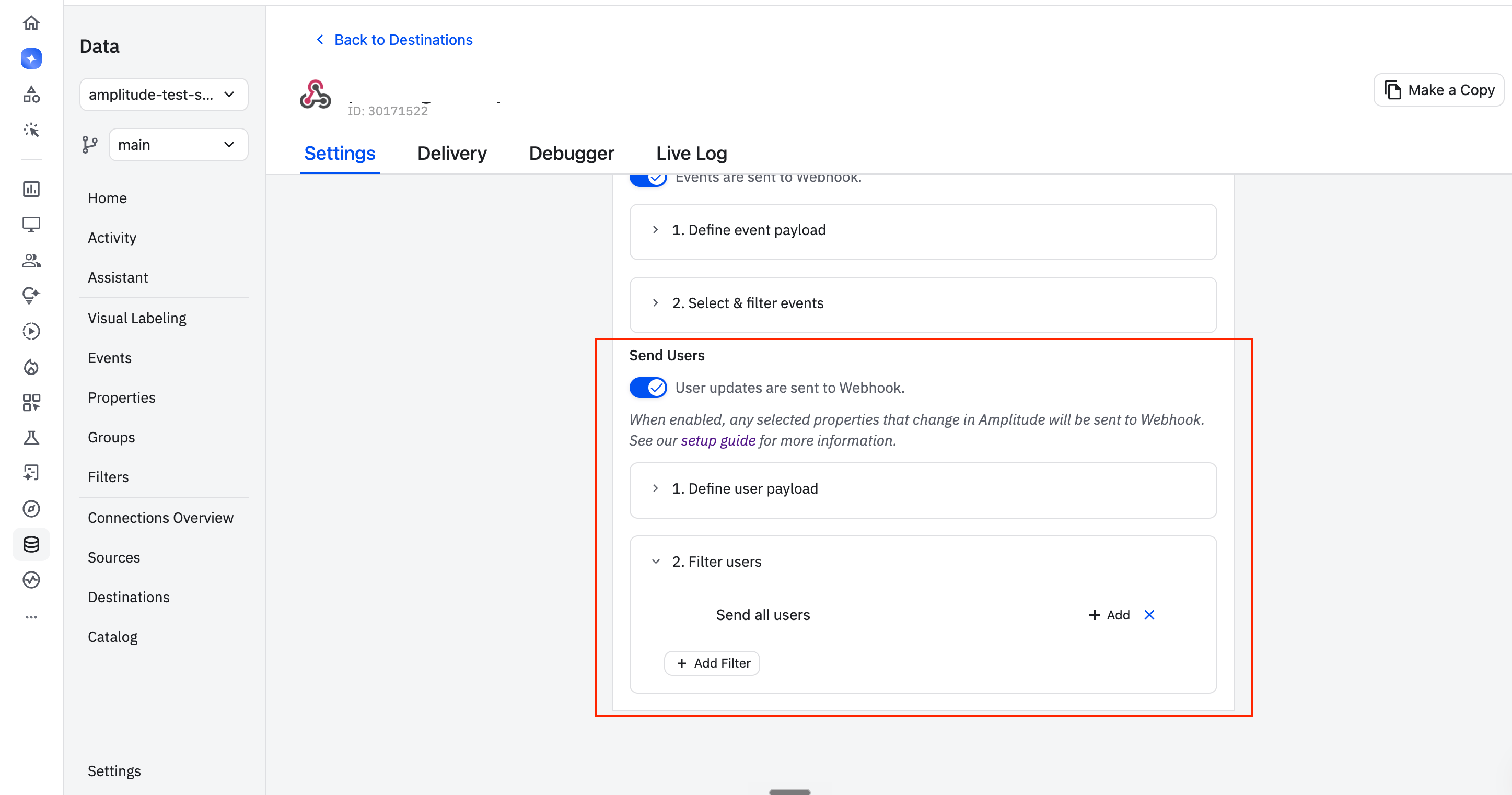 9. Activate the webhook status and click Save.
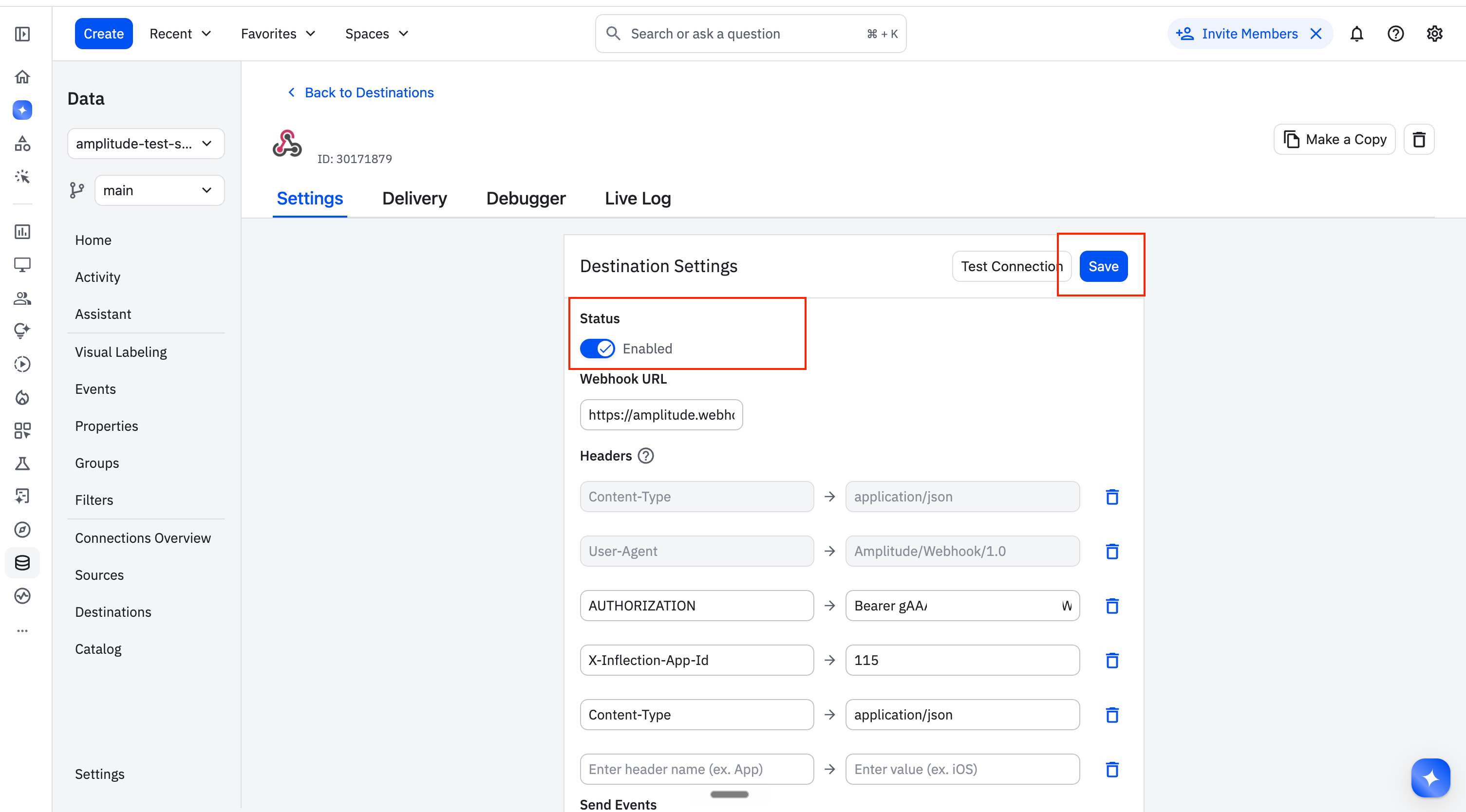 10. Verify the connection with test data
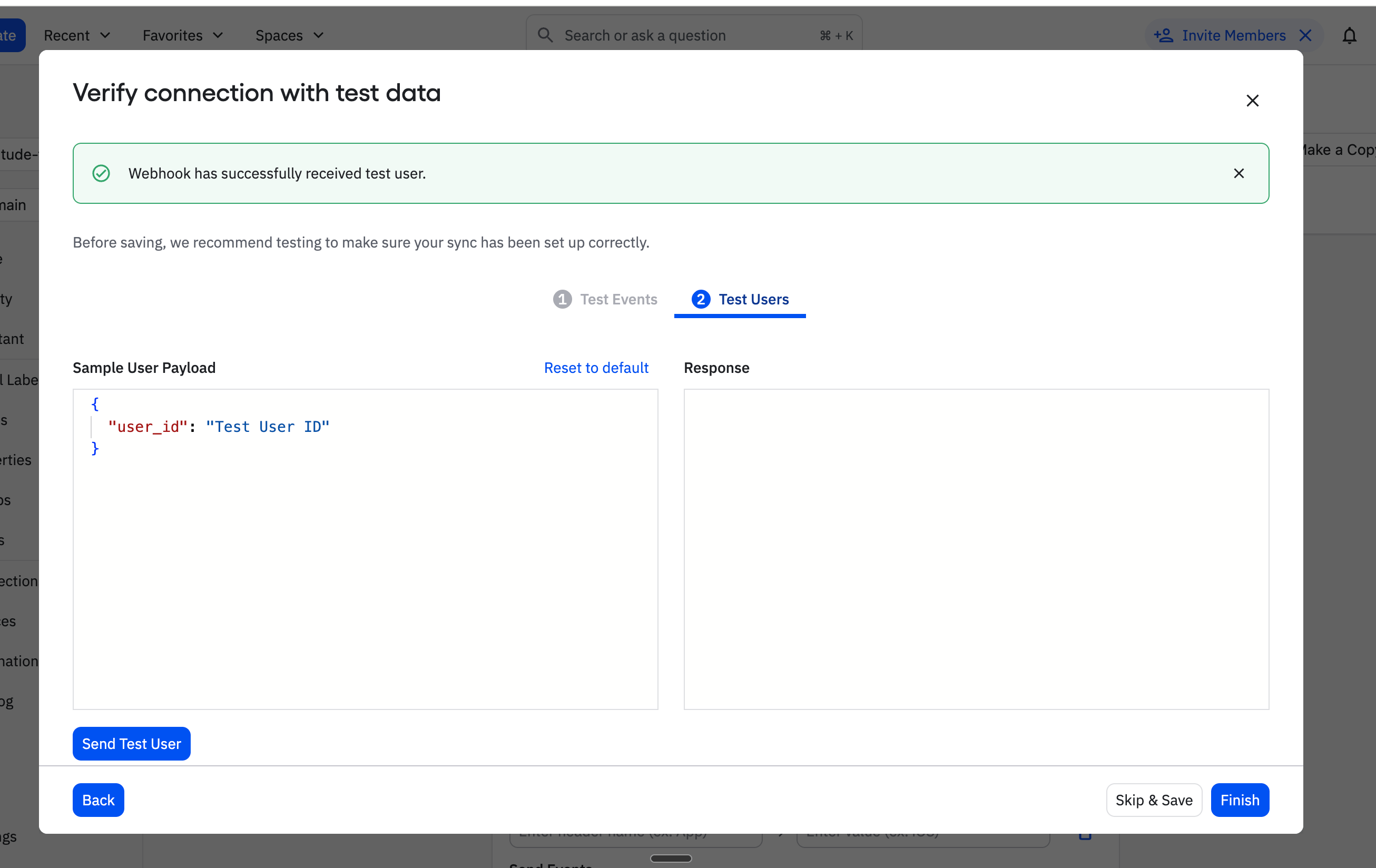 11. After this, Amplitude will begin pushing events to Inflection within a few minutes.
## Sync Group Properties From Amplitude
In Amplitude, a **group** represents an account or workspace that your users belong to (for example, an organization). Group properties such as ARR, plan, seat count, and renewal date are shared by every user in the group. Inflection syncs these as org (workspace) attributes, so you can build account-based audiences and personalize on account-level data alongside each contact's own activity.
Unlike events and user properties, which arrive in near real time through the webhook, group properties are pulled on a schedule through Amplitude's Export API. Configure this in the **Group Properties** section of the Amplitude connection.
Group property sync is configured separately from the webhook and needs its own credentials: an Amplitude **API Key**, **Secret Key**, and the **Group Profile Name** to sync.
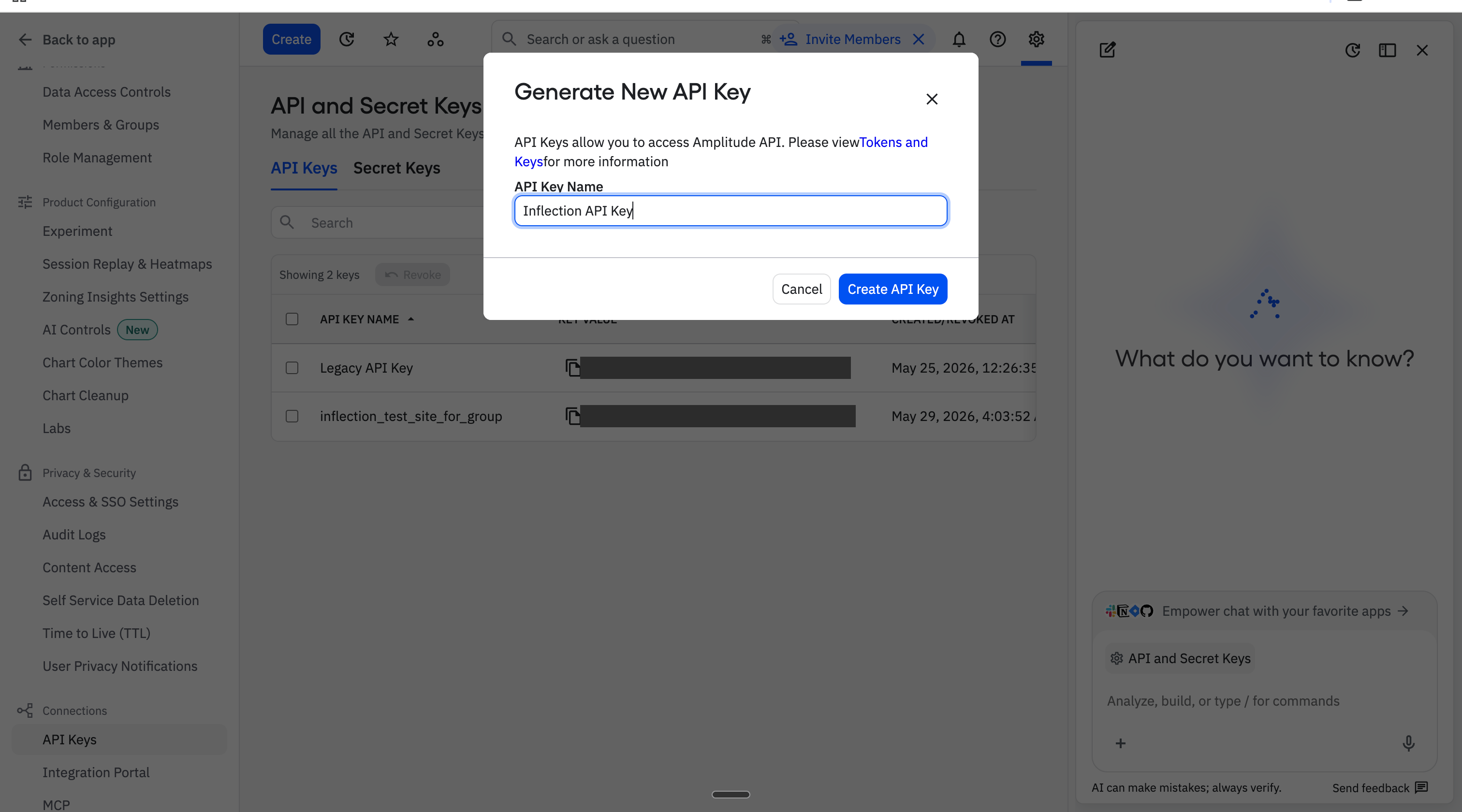
### Step 1: Generate an Amplitude API Key and Secret Key
In Amplitude:
1. Click **Settings** in the left navigation.
2. Scroll to **API Keys**.
3. On the **API Key** tab, generate an API key.
4. Open the **Secret Key** tab and copy the secret key. The secret key is shared across the Amplitude project.
5. Keep both values handy - you will paste them into Inflection.
11. After this, Amplitude will begin pushing events to Inflection within a few minutes.
## Sync Group Properties From Amplitude
In Amplitude, a **group** represents an account or workspace that your users belong to (for example, an organization). Group properties such as ARR, plan, seat count, and renewal date are shared by every user in the group. Inflection syncs these as org (workspace) attributes, so you can build account-based audiences and personalize on account-level data alongside each contact's own activity.
Unlike events and user properties, which arrive in near real time through the webhook, group properties are pulled on a schedule through Amplitude's Export API. Configure this in the **Group Properties** section of the Amplitude connection.
Group property sync is configured separately from the webhook and needs its own credentials: an Amplitude **API Key**, **Secret Key**, and the **Group Profile Name** to sync.
### Step 1: Generate an Amplitude API Key and Secret Key
In Amplitude:
1. Click **Settings** in the left navigation.
2. Scroll to **API Keys**.
3. On the **API Key** tab, generate an API key.
4. Open the **Secret Key** tab and copy the secret key. The secret key is shared across the Amplitude project.
5. Keep both values handy - you will paste them into Inflection.
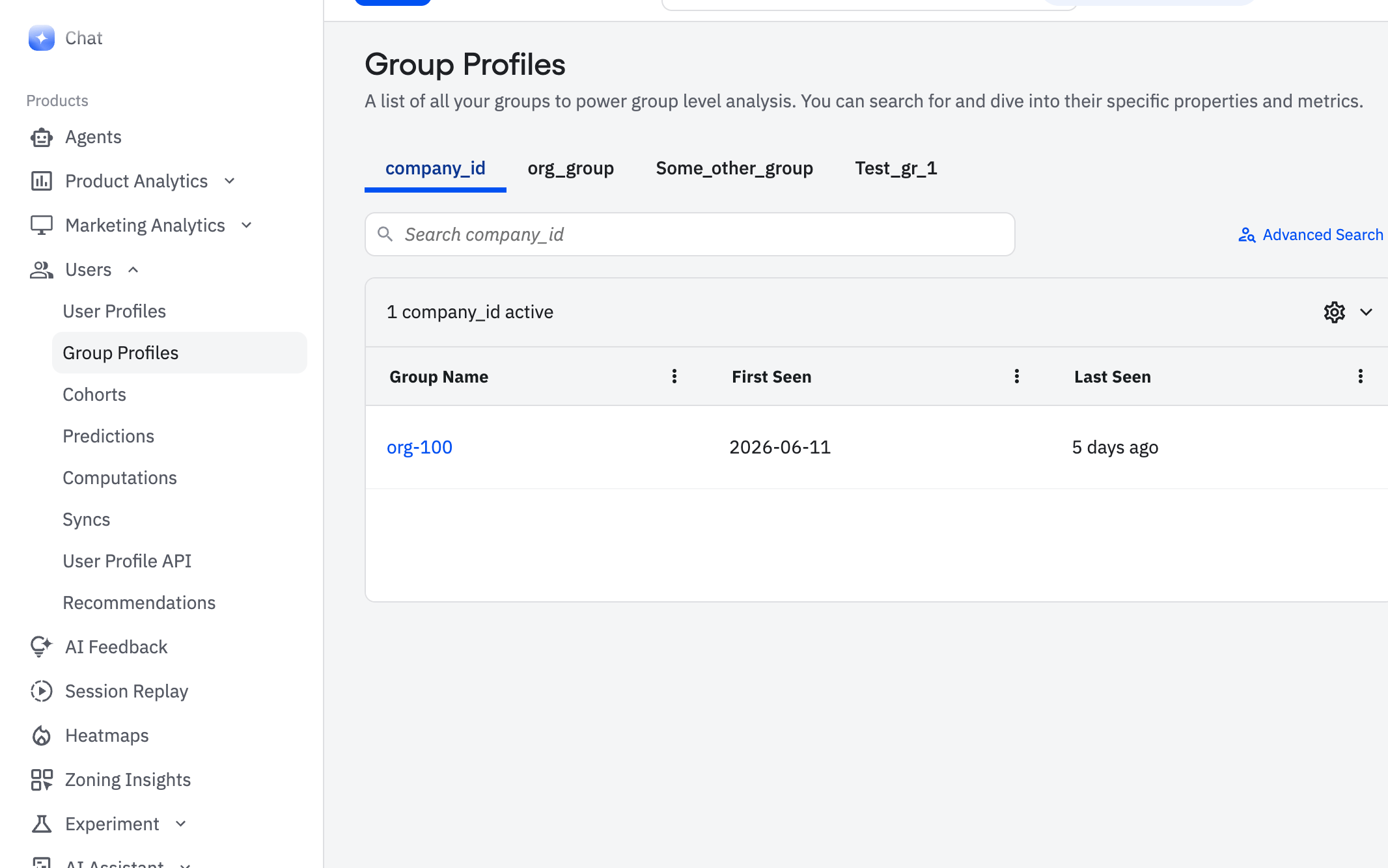
 ### Step 2: Find Your Group Profile Name
Group properties in Amplitude live under group profiles.
1. In Amplitude, open the **Group Profiles** tab.
2. Note the profile name you want to sync - this is the tab name shown for the group (for example, `org_group`). You will enter this exact value in Inflection.
Most workspaces use a single group profile, such as organization. If you maintain more than one, sync the profile that holds the account attributes you want to use in Inflection.
### Step 2: Find Your Group Profile Name
Group properties in Amplitude live under group profiles.
1. In Amplitude, open the **Group Profiles** tab.
2. Note the profile name you want to sync - this is the tab name shown for the group (for example, `org_group`). You will enter this exact value in Inflection.
Most workspaces use a single group profile, such as organization. If you maintain more than one, sync the profile that holds the account attributes you want to use in Inflection.
 ### Step 3: Add Group Properties to the Inflection Connection
In Inflection, in the Amplitude connection, find the **Group Properties** section and enter:
1. **API Key:** the Amplitude API key from Step 1.
2. **Secret Key:** the Amplitude secret key from Step 1.
3. **Group Profile Name:** the profile name from Step 2 (for example, `org_group`).
Save the connection. Inflection begins pulling group properties on the next Export API sync.
When you edit an existing connection, you can update these values, but the saved API key and secret key are hidden for security.
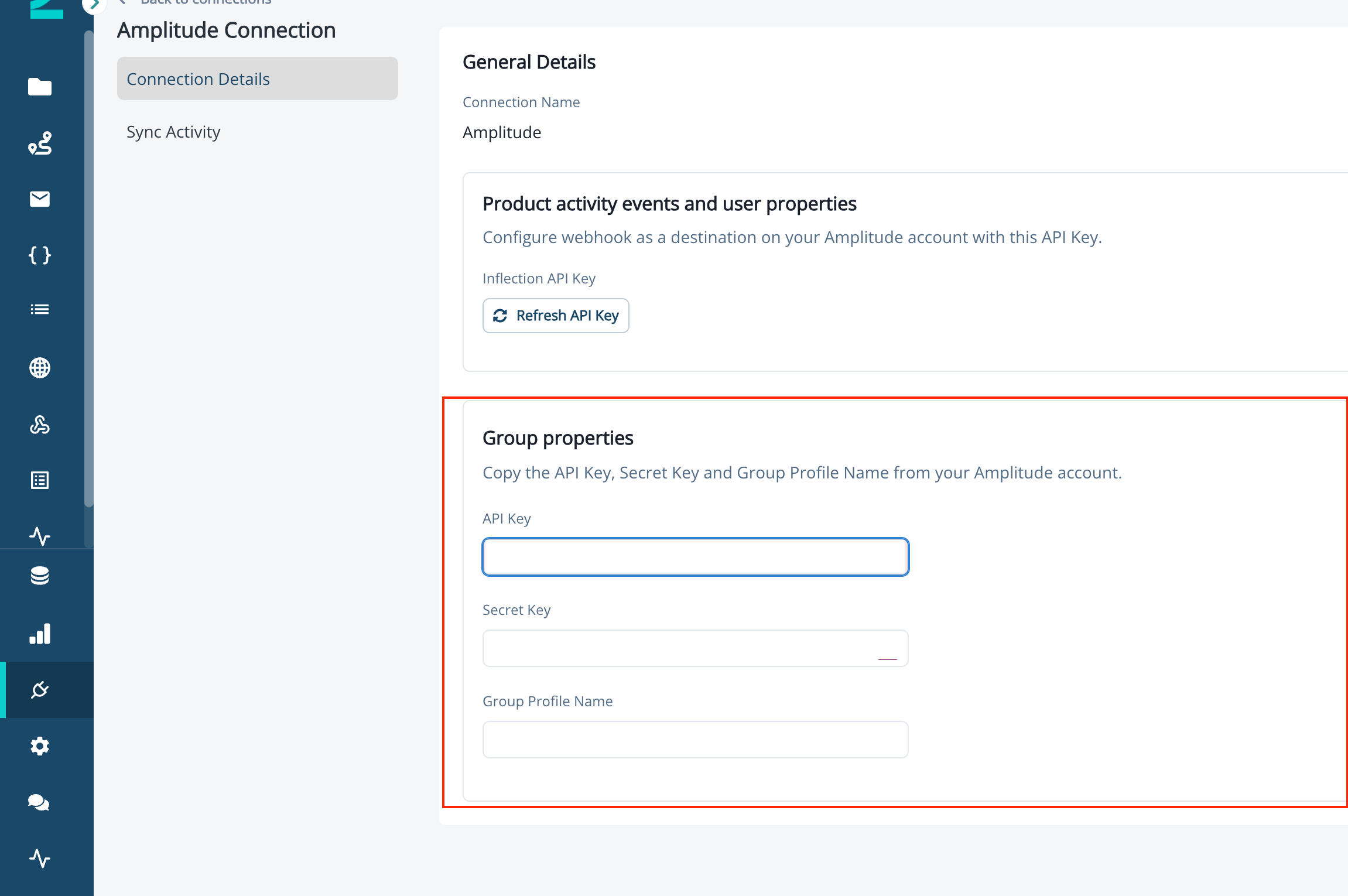
### Step 3: Add Group Properties to the Inflection Connection
In Inflection, in the Amplitude connection, find the **Group Properties** section and enter:
1. **API Key:** the Amplitude API key from Step 1.
2. **Secret Key:** the Amplitude secret key from Step 1.
3. **Group Profile Name:** the profile name from Step 2 (for example, `org_group`).
Save the connection. Inflection begins pulling group properties on the next Export API sync.
When you edit an existing connection, you can update these values, but the saved API key and secret key are hidden for security.
 ### How Group Properties Sync
Group property sync runs on a schedule, not in real time. Two things must happen before a group property change appears in Inflection:
* **A sync cycle runs.** Inflection calls Amplitude's Export API approximately every one to two hours.
* **A user in the group fires an event.** Amplitude attaches group properties to user activity, so a contact in the group must fire at least one product activity event during the cycle for the latest group properties to be picked up.
Because of this, expect group properties to update with a delay of up to a couple of hours, and only for groups whose users are active. User properties, by contrast, sync in near real time through the webhook.
### Where Group Properties Appear in Inflection
Synced group properties appear as org attributes on the Product User. Open a contact who belongs to an Amplitude group to see the group's properties (for example, ARR, plan, and active status) by clicking on the **Org id**. A contact who belongs to more than one group shows the properties for each group.
### How Group Properties Sync
Group property sync runs on a schedule, not in real time. Two things must happen before a group property change appears in Inflection:
* **A sync cycle runs.** Inflection calls Amplitude's Export API approximately every one to two hours.
* **A user in the group fires an event.** Amplitude attaches group properties to user activity, so a contact in the group must fire at least one product activity event during the cycle for the latest group properties to be picked up.
Because of this, expect group properties to update with a delay of up to a couple of hours, and only for groups whose users are active. User properties, by contrast, sync in near real time through the webhook.
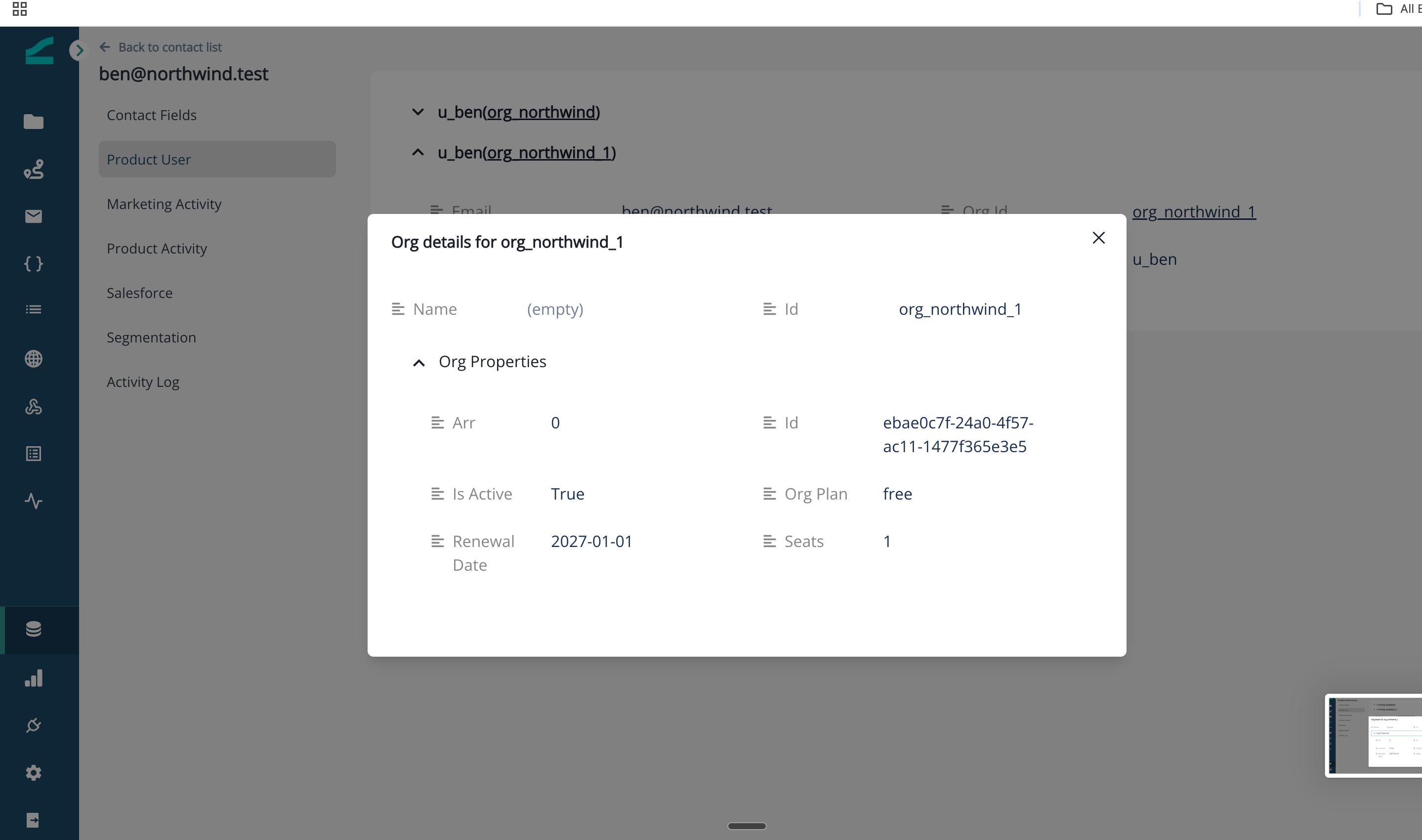
### Where Group Properties Appear in Inflection
Synced group properties appear as org attributes on the Product User. Open a contact who belongs to an Amplitude group to see the group's properties (for example, ARR, plan, and active status) by clicking on the **Org id**. A contact who belongs to more than one group shows the properties for each group.
 ## Sync Group Properties From Amplitude
In Amplitude, a **group** represents an account or workspace that your users belong to (for example, an organization). Group properties such as ARR, plan, seat count, and renewal date are shared by every user in the group. Inflection syncs these as org (workspace) attributes, so you can build account-based audiences and personalize on account-level data alongside each contact's own activity.
Unlike events and user properties, which arrive in near real time through the webhook, group properties are pulled on a schedule through Amplitude's Export API. Configure this in the **Group Properties** section of the Amplitude connection.
Group property sync is configured separately from the webhook and needs its own credentials: an Amplitude **API Key**, **Secret Key**, and the **Group Profile Name** to sync.
### Step 1: Generate an Amplitude API Key and Secret Key
In Amplitude:
1. Click **Settings** in the left navigation.
2. Scroll to **API Keys**.
3. On the **API Key** tab, generate an API key.
4. Open the **Secret Key** tab and copy the secret key. The secret key is shared across the Amplitude project.
5. Keep both values handy — you will paste them into Inflection.
### Step 2: Find Your Group Profile Name
Group properties in Amplitude live under group profiles.
1. In Amplitude, open the **Group Profiles** tab.
2. Note the profile name you want to sync — this is the tab name shown for the group (for example, `org_group`). You will enter this exact value in Inflection.
Most workspaces use a single group profile, such as organization. If you maintain more than one, sync the profile that holds the account attributes you want to use in Inflection.
### Step 3: Add Group Properties to the Inflection Connection
In Inflection, in the Amplitude connection, find the **Group Properties** section and enter:
1. **API Key:** the Amplitude API key from Step 1.
2. **Secret Key:** the Amplitude secret key from Step 1.
3. **Group Profile Name:** the profile name from Step 2 (for example, `org_group`).
Save the connection. Inflection begins pulling group properties on the next Export API sync.
When you edit an existing connection, you can update these values, but the saved API key and secret key are hidden for security.
### How Group Properties Sync
Group property sync runs on a schedule, not in real time. Two things must happen before a group property change appears in Inflection:
* **A sync cycle runs.** Inflection calls Amplitude's Export API approximately every one to two hours.
* **A user in the group fires an event.** Amplitude attaches group properties to user activity, so a contact in the group must fire at least one product activity event during the cycle for the latest group properties to be picked up.
Because of this, expect group properties to update with a delay of up to a couple of hours, and only for groups whose users are active. User properties, by contrast, sync in near real time through the webhook.
### Where Group Properties Appear in Inflection
Synced group properties appear as org attributes on the Product User. Open a contact who belongs to an Amplitude group to see the group's properties (for example, ARR, plan, and active status) by clicking on the **Org id**. A contact who belongs to more than one group shows the properties for each group.
## Manage the Connection
Once connected, the **Amplitude** entry in the Connections sidebar opens the Amplitude Connection Details page. The page has two tabs.
### Connection Details Tab
The Connection Details tab shows:
* A connection status badge **Connected** or **Disconnected**.
* The **Inflection API Key** in masked form with a **Copy** button.
* A **Refresh API Key** button.
## Sync Group Properties From Amplitude
In Amplitude, a **group** represents an account or workspace that your users belong to (for example, an organization). Group properties such as ARR, plan, seat count, and renewal date are shared by every user in the group. Inflection syncs these as org (workspace) attributes, so you can build account-based audiences and personalize on account-level data alongside each contact's own activity.
Unlike events and user properties, which arrive in near real time through the webhook, group properties are pulled on a schedule through Amplitude's Export API. Configure this in the **Group Properties** section of the Amplitude connection.
Group property sync is configured separately from the webhook and needs its own credentials: an Amplitude **API Key**, **Secret Key**, and the **Group Profile Name** to sync.
### Step 1: Generate an Amplitude API Key and Secret Key
In Amplitude:
1. Click **Settings** in the left navigation.
2. Scroll to **API Keys**.
3. On the **API Key** tab, generate an API key.
4. Open the **Secret Key** tab and copy the secret key. The secret key is shared across the Amplitude project.
5. Keep both values handy — you will paste them into Inflection.
### Step 2: Find Your Group Profile Name
Group properties in Amplitude live under group profiles.
1. In Amplitude, open the **Group Profiles** tab.
2. Note the profile name you want to sync — this is the tab name shown for the group (for example, `org_group`). You will enter this exact value in Inflection.
Most workspaces use a single group profile, such as organization. If you maintain more than one, sync the profile that holds the account attributes you want to use in Inflection.
### Step 3: Add Group Properties to the Inflection Connection
In Inflection, in the Amplitude connection, find the **Group Properties** section and enter:
1. **API Key:** the Amplitude API key from Step 1.
2. **Secret Key:** the Amplitude secret key from Step 1.
3. **Group Profile Name:** the profile name from Step 2 (for example, `org_group`).
Save the connection. Inflection begins pulling group properties on the next Export API sync.
When you edit an existing connection, you can update these values, but the saved API key and secret key are hidden for security.
### How Group Properties Sync
Group property sync runs on a schedule, not in real time. Two things must happen before a group property change appears in Inflection:
* **A sync cycle runs.** Inflection calls Amplitude's Export API approximately every one to two hours.
* **A user in the group fires an event.** Amplitude attaches group properties to user activity, so a contact in the group must fire at least one product activity event during the cycle for the latest group properties to be picked up.
Because of this, expect group properties to update with a delay of up to a couple of hours, and only for groups whose users are active. User properties, by contrast, sync in near real time through the webhook.
### Where Group Properties Appear in Inflection
Synced group properties appear as org attributes on the Product User. Open a contact who belongs to an Amplitude group to see the group's properties (for example, ARR, plan, and active status) by clicking on the **Org id**. A contact who belongs to more than one group shows the properties for each group.
## Manage the Connection
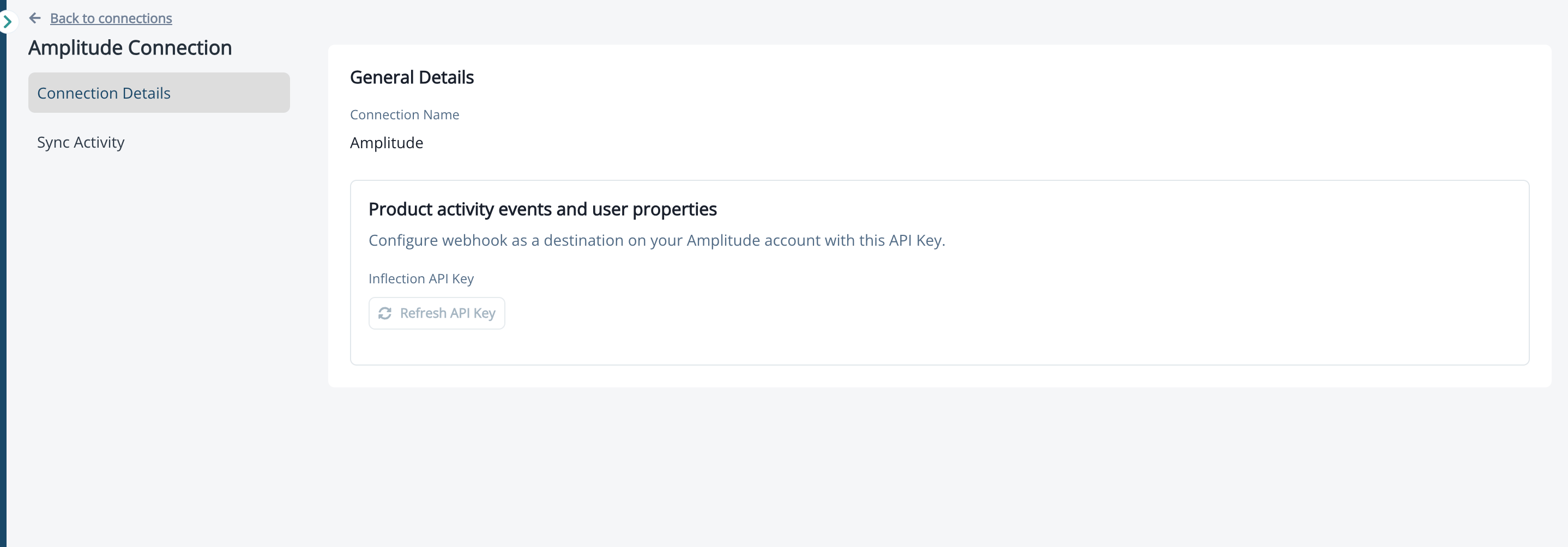
Once connected, the **Amplitude** entry in the Connections sidebar opens the Amplitude Connection Details page. The page has two tabs.
### Connection Details Tab
The Connection Details tab shows:
* A connection status badge **Connected** or **Disconnected**.
* The **Inflection API Key** in masked form with a **Copy** button.
* A **Refresh API Key** button.
 ### Refresh Your API Key
Refresh the API key if you suspect it has been exposed or want to rotate credentials.
1. On the Connection Details tab, click **Refresh API Key**.
2. Read the confirmation dialog: refreshing the key immediately deactivates the existing key.
3. Click **Confirm** to generate a new key.
4. Copy the new key and update it in Amplitude's Integration Portal. Event flow resumes once Amplitude is using the new key.
## Monitor Sync Activity
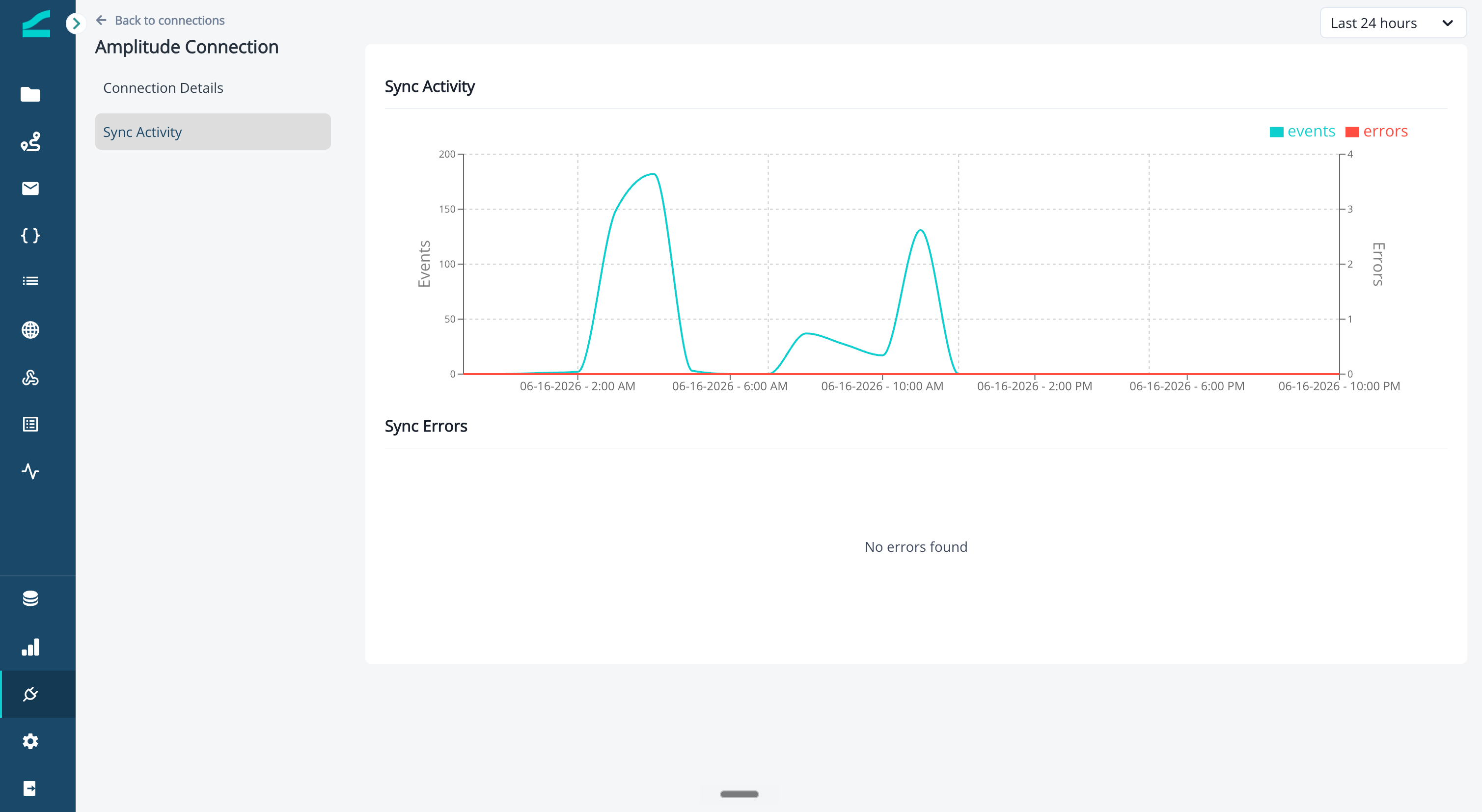
Use the **Sync Activity** tab on the Amplitude Connection Details page to monitor incoming events and troubleshoot delivery issues.
The tab shows:
* A **time range selector** — 24 hours, 30 days, 60 days, or 90 days.
* A **line chart** plotting **Events Received** and **Errors** over the selected range.
* An **error list** below the chart with columns for **Timestamp**, **Event Name**, **Error Type**, and **Description**. Expand a row to see the full event payload.
### Refresh Your API Key
Refresh the API key if you suspect it has been exposed or want to rotate credentials.
1. On the Connection Details tab, click **Refresh API Key**.
2. Read the confirmation dialog: refreshing the key immediately deactivates the existing key.
3. Click **Confirm** to generate a new key.
4. Copy the new key and update it in Amplitude's Integration Portal. Event flow resumes once Amplitude is using the new key.
## Monitor Sync Activity
Use the **Sync Activity** tab on the Amplitude Connection Details page to monitor incoming events and troubleshoot delivery issues.
The tab shows:
* A **time range selector** — 24 hours, 30 days, 60 days, or 90 days.
* A **line chart** plotting **Events Received** and **Errors** over the selected range.
* An **error list** below the chart with columns for **Timestamp**, **Event Name**, **Error Type**, and **Description**. Expand a row to see the full event payload.
 ## Find Amplitude Events in the Product Data Explorer
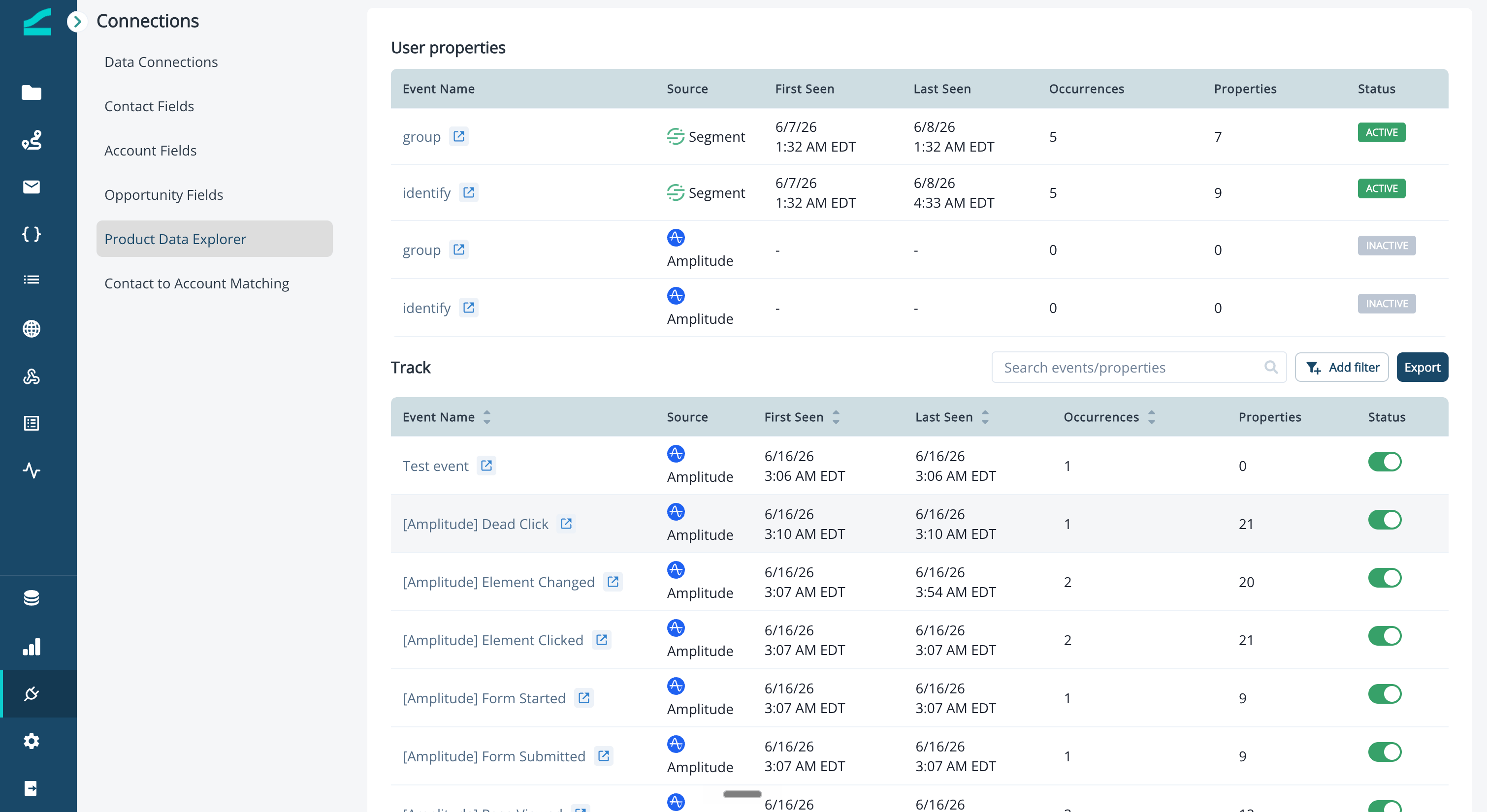
Open **Connections** > **Product Data Explorer** to see every event that has reached Inflection across all connected sources, including Amplitude.
* The **Source** column at the top of the table lets you narrow the list to **Amplitude**, **Segment**, or **All Sources**.
* The **Source** column on each row shows the originating source for that event.
* Use the toggle on each row to enable an event for use in audiences, journeys, and personalization.
## Find Amplitude Events in the Product Data Explorer
Open **Connections** > **Product Data Explorer** to see every event that has reached Inflection across all connected sources, including Amplitude.
* The **Source** column at the top of the table lets you narrow the list to **Amplitude**, **Segment**, or **All Sources**.
* The **Source** column on each row shows the originating source for that event.
* Use the toggle on each row to enable an event for use in audiences, journeys, and personalization.
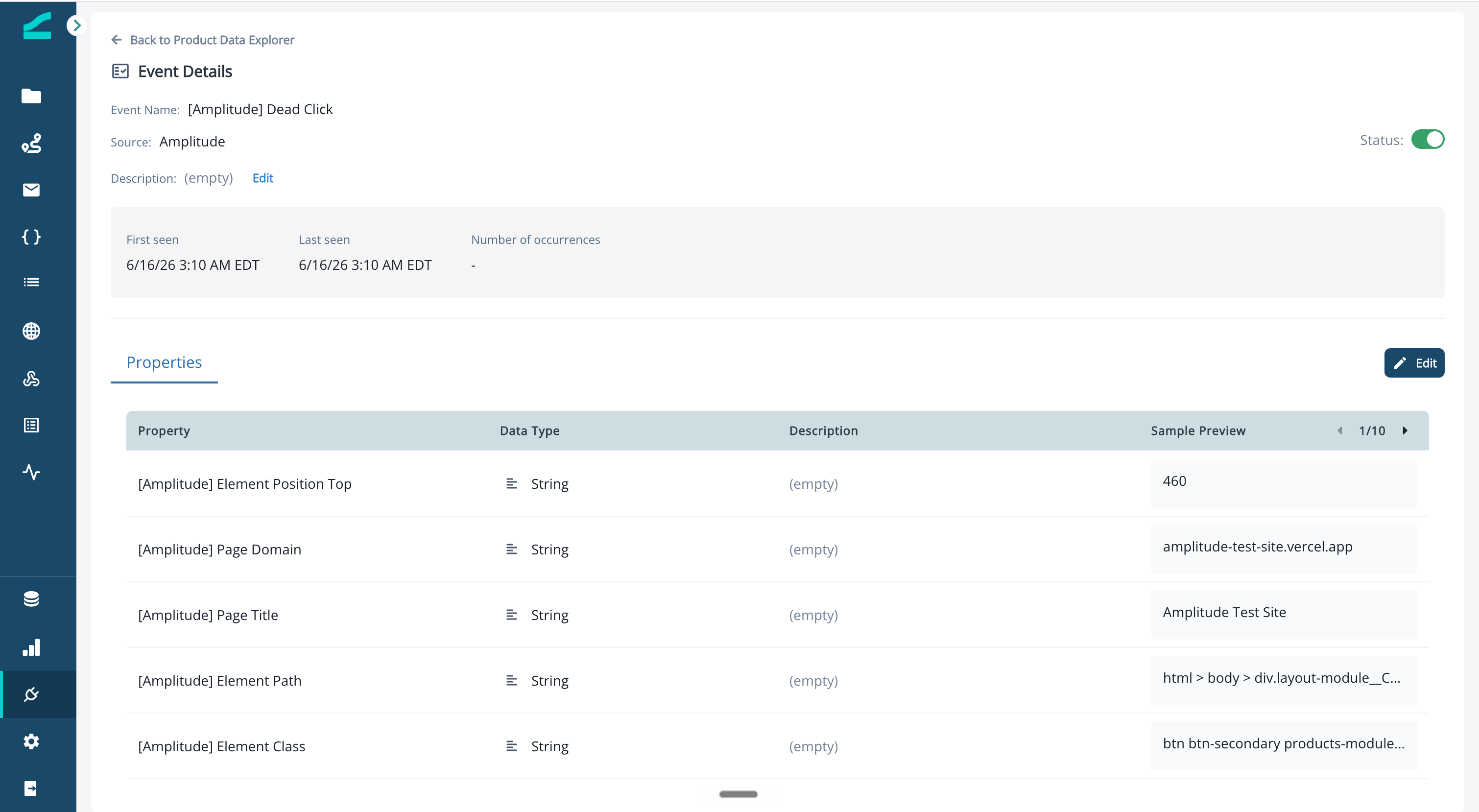
 Click an event name to open its detail page. The detail page shows:
* **Event Name** and **Source**.
* An editable **Description**.
* A **Status** toggle for enabling or disabling the event.
* A **Properties** table listing each property with its **Data Type**, **Description**, and **Sample Preview**.
Click an event name to open its detail page. The detail page shows:
* **Event Name** and **Source**.
* An editable **Description**.
* A **Status** toggle for enabling or disabling the event.
* A **Properties** table listing each property with its **Data Type**, **Description**, and **Sample Preview**.
 ## Use Amplitude Data in Campaigns and Journeys
Once events are enabled and properties are mapped, Amplitude data is available everywhere product data is used in Inflection — no additional configuration is needed:
* **Dynamic lists and audiences:** filter on Amplitude event names, event counts, and mapped user properties.
* **Journey batch triggers and exit criteria:** Trigger journeys on Amplitude events or use them as exit conditions.
* **Contact profile:** Amplitude events appear in the product activity timeline alongside events from other sources.
* **Personalization tokens:** mapped Amplitude user properties can be used as tokens in email and other channels.
## Common Use Cases
* **Onboarding journeys driven by product behavior.** Trigger a welcome series when a user fires the `account_created` event in Amplitude, then branch based on whether they fire `first_value_milestone` within seven days.
* **Re-engagement based on activity gaps.** Build a dynamic list of users who have not fired any Amplitude event in the last 30 days and enroll them in a winback campaign.
* **Feature adoption nudges.** Target users who have fired the `feature_x_viewed` event but not `feature_x_used` within 14 days.
* **Cross-source segmentation.** Combine Amplitude product activity with attributes from your other connected sources (for example, Salesforce account stage) in a single audience.
## Amplitude Connection FAQ
The current feature covers Amplitude as a source only - events flow from Amplitude into Inflection. Sending Inflection marketing activities to Amplitude is not supported yet.
The previous key is deactivated immediately and Amplitude stops being able to push events until you save the new key in the Amplitude Integration Portal. Plan key rotations during low-traffic windows to minimize the event gap.
Check the **Sync Activity** tab on the Amplitude Connection Details page. The error list shows the most recent ingestion errors with the event name, error type, and description. If you see no events at all in the chart, verify the endpoint URL and API key in Amplitude's Integration Portal match the values shown in Inflection.
This documentation is built and hosted on [Mintlify](https://mintlify.com), a developer documentation platform.
## Use Amplitude Data in Campaigns and Journeys
Once events are enabled and properties are mapped, Amplitude data is available everywhere product data is used in Inflection — no additional configuration is needed:
* **Dynamic lists and audiences:** filter on Amplitude event names, event counts, and mapped user properties.
* **Journey batch triggers and exit criteria:** Trigger journeys on Amplitude events or use them as exit conditions.
* **Contact profile:** Amplitude events appear in the product activity timeline alongside events from other sources.
* **Personalization tokens:** mapped Amplitude user properties can be used as tokens in email and other channels.
## Common Use Cases
* **Onboarding journeys driven by product behavior.** Trigger a welcome series when a user fires the `account_created` event in Amplitude, then branch based on whether they fire `first_value_milestone` within seven days.
* **Re-engagement based on activity gaps.** Build a dynamic list of users who have not fired any Amplitude event in the last 30 days and enroll them in a winback campaign.
* **Feature adoption nudges.** Target users who have fired the `feature_x_viewed` event but not `feature_x_used` within 14 days.
* **Cross-source segmentation.** Combine Amplitude product activity with attributes from your other connected sources (for example, Salesforce account stage) in a single audience.
## Amplitude Connection FAQ
The current feature covers Amplitude as a source only - events flow from Amplitude into Inflection. Sending Inflection marketing activities to Amplitude is not supported yet.
The previous key is deactivated immediately and Amplitude stops being able to push events until you save the new key in the Amplitude Integration Portal. Plan key rotations during low-traffic windows to minimize the event gap.
Check the **Sync Activity** tab on the Amplitude Connection Details page. The error list shows the most recent ingestion errors with the event name, error type, and description. If you see no events at all in the chart, verify the endpoint URL and API key in Amplitude's Integration Portal match the values shown in Inflection.
This documentation is built and hosted on [Mintlify](https://mintlify.com), a developer documentation platform.